
Managing access to shared video clips
2026-07-22Last updated
To review and manage shared video clips, including recipient access and permissions, end users can use the Manage video clips dialog in Security Center SaaS.
Procedure
-
In Security Center SaaS, click the account username and click Manage video
clips.
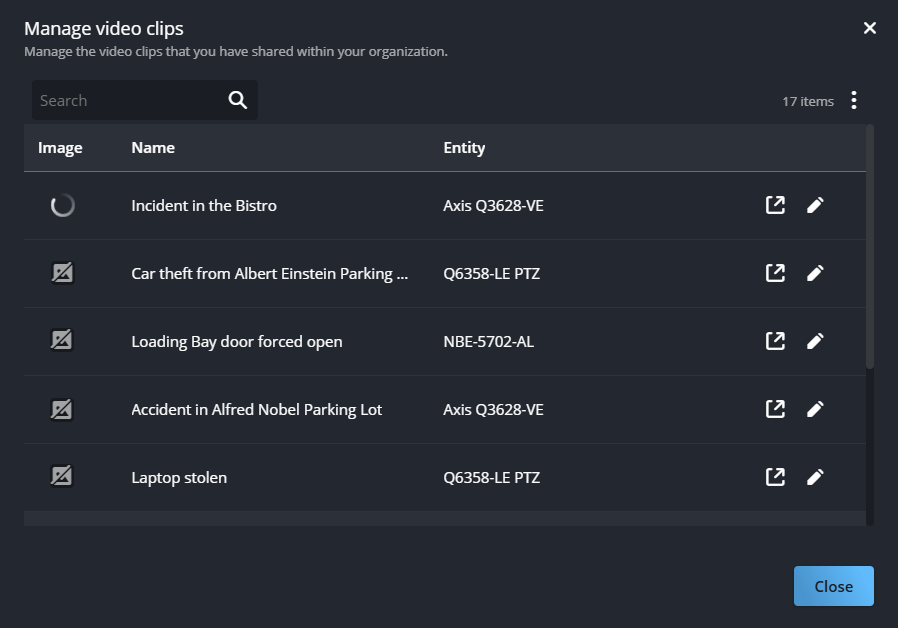
-
(Optional) In the Manage video clips dialog, click Show
more (
 )
and select Column options to set the order and visibility of
columns.
)
and select Column options to set the order and visibility of
columns.
- Select or clear the checkboxes to show or hide columns as required.
-
Click and drag Reorder (
 ) next to the column names to set your preferred order.
- Click Apply.
-
Click View video clip (
 ) to review the video contents, the recipients list, and the permission
levels.
) to review the video contents, the recipients list, and the permission
levels.
-
Click
Edit access (
 ) to
review or change access.
) to
review or change access.