
Adding entities to the watchlist
2026-08-10Last updated
To monitor access control and camera-related events in real-time, you can add entities to the watchlist.
Before you begin
What you should know
- Your watchlist can be accessed from any task using the Watchlist
(
 ) button in the notification tray.
 - The Watchlist icon displays the number of missed events since the side pane was last closed. Up to 250 events can be displayed. Opening the Watchlist pane resets the tray number to zero.
- Events are visible in the watchlist for a maximum of 15 minutes. To view older events, generate a unified report in the Reports task.
Procedure
-
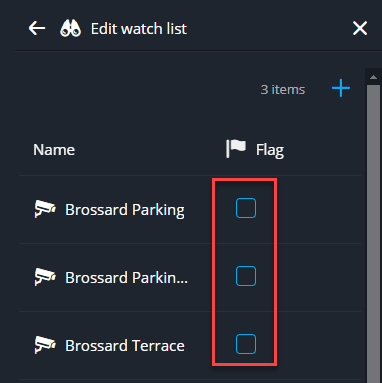
(Optional) To display the events related to a specific entity at the top of the list,
select the Flag checkbox next to the entity.
-
Click the back arrow.
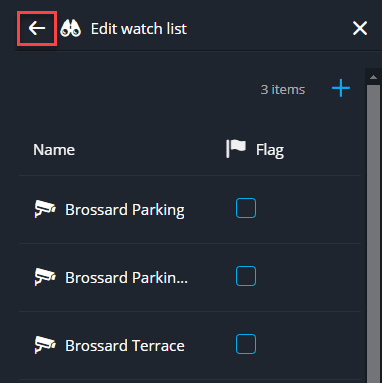 The watchlist starts populating with events as they occur.Note:Once your watchlist is populated, you can click any event to view its details, hover over an individual event to dismiss it, or select Dismiss all to clear your entire queue.