
Axis device connectivity issues
If you can't add an Axis direct-to-cloud (D2C) or Axis Powered by Genetec device to Security Center SaaS, check whether the device can establish a connection.
- A list of Security Center SaaS endpoints to validate
- Device IP address and credentials
- User
- DMrescue (case sensitive)
- Password
- Enter the device Owner Authentication Key (OAK).
To help you troubleshoot this issue, learn about its possible causes and solutions.
Cause: Endpoint ports are closed or unreachable
Description: The endpoint TCP ports are closed, or the device is unable to reach the endpoints. For example, the device could be blocked by firewall settings or a zero-trust cloud solution integration after a deep packet inspection of the header and other elements.
Solution 1: Perform a ping test from the Axis web page
- Open a web browser and enter the device IP address.
- Log in with the device credentials.
- Replace the URL in the browser with the ping test example URL below.
Before pressing enter, modify the <ip_address> to match the device IP address.
URL format: https://<ip-address>/axis-cgi/pingtest.cgi?ip=<endpoint>
- <ip-address> is the IP address of the device.
- <endpoint> is the FQDN (fully qualified domain name) or a public IP address to test.
Example: https://<ip_address>/axis-cgi/pingtest.cgi?ip=onboardme.prod.oneclick.connect.axis.com
- Fix any connectivity issues:
- Check physical connections.
- Update firewall settings.
- Consider resetting the network stack.
Solution 2: Perform a TCP test from the Axis web page
- Open a web browser and enter the device IP address.
- Log in with the device credentials.
- Replace the URL in the browser with the TCP test example URL below.
Before pressing enter, modify the <ip_address> to match the device IP address and enter the endpoint and port you want to test.
URL format: https://<ip-address>/axis-cgi/tcptest.cgi?address=<endpoint>&port=<port>
- <ip-address> is the IP address of the device.
- <endpoint> is the FQDN (fully qualified domain name) or a public IP address to test.
- <port> is the TCP port to test against.
Example: https://<ip_address>/axis-cgi/tcptest.cgi?address=onboardme.prod.oneclick.connect.axis.com&port=443- If the TCP test response message is 400 Bad Request and
Could not resolve address, check the Axis logs and click
Download the device server report to investigate
connectivity issues for the endpoint you are
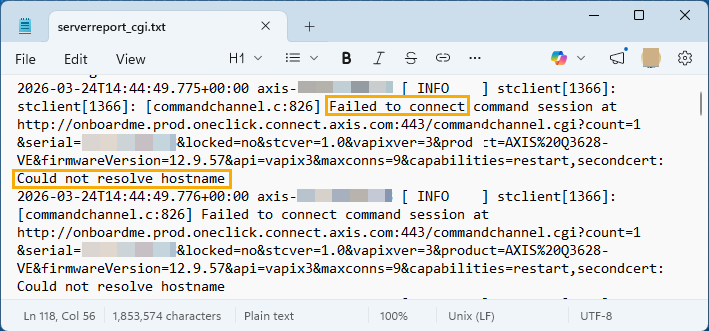
testing.The following example shows a TCP test that failed to connect because the hostname could not be resolved.
 The following example shows a TCP test that failed because a DNS connection request failed to resolve the DNS name.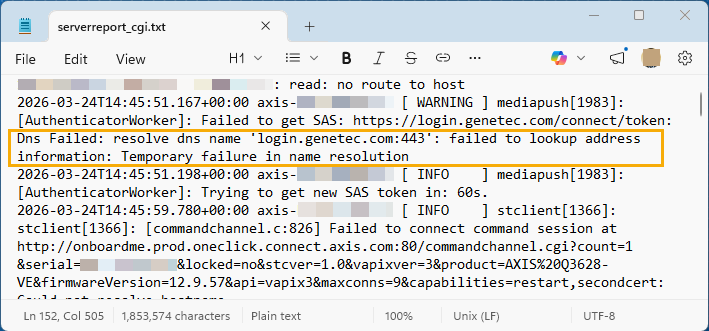
- Fix any connectivity issues and then activate the port for the endpoint you are testing.
- If the TCP test response message is Test successful the port and endpoint connectivity is good, and no further action is required for this test.
Solution 3: Perform a Wireshark trace from the Axis web page
- Open a web browser and enter the device IP address.
- Log in with the device credentials.
- Replace the URL in the browser with the Wireshark trace example URL below.
Before pressing enter, modify the <ip_address> to match the device IP address.
Example: https://<ip_address>/axis-cgi/debug/debug.tgz?cmd=pcapdump&duration=180
- In GTAC, open a support ticket and include the Wireshark trace pcapdump.cap file.