
Okta user synchronization issues
2026-05-12Last updated
Check the Okta application assignments or system logs for provisioning failures if a user reports access issues or if a user is not synchronized from Okta to Security Center SaaS correctly.
Cause: An Okta synchronization failure occurred
Description: A user cannot access Security Center SaaS because their user did not synchronize from Okta to Security Center SaaS correctly.
Solution 1: Check Okta application assignments for issues
- In the Okta Admin Console, click .
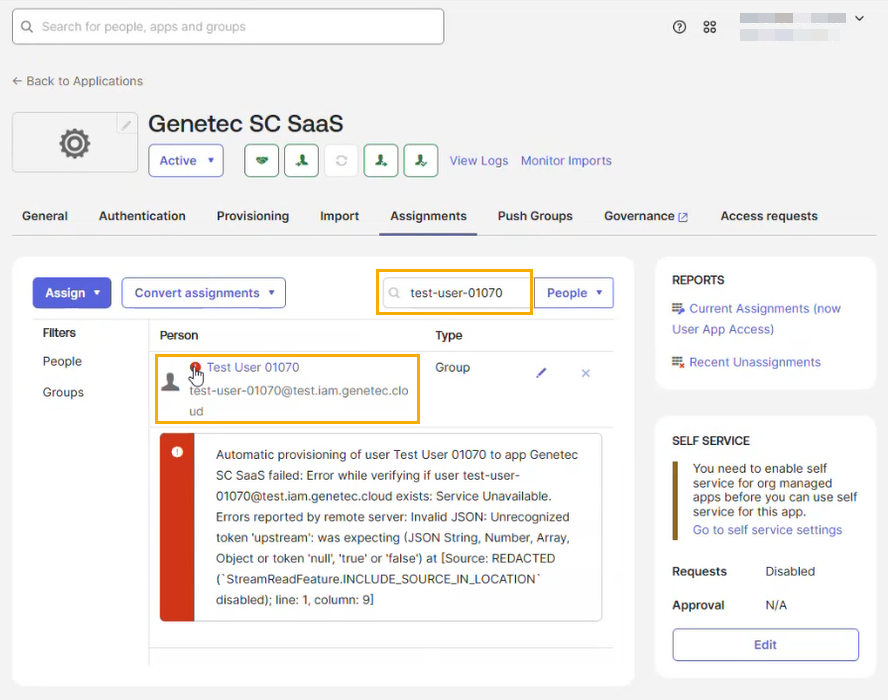
- Click Assignments and type the user information in the search field, and then press Enter.
- In the Person column, click the exclamation icon next to the
user for more information about the failure.
Solution 2: Check the Okta system logs for issues
- In the Okta Admin Console, select , and then click View logs.
- In the System Log section, click Advanced Filters.
- In the Advanced Filters dialog, click Add
Filter.
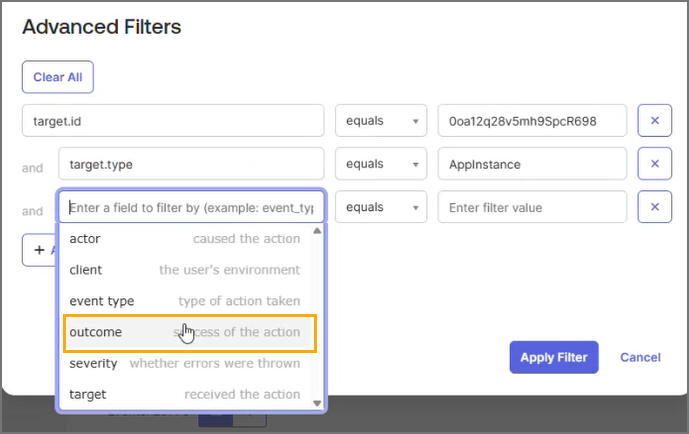
- In the Enter a field to filter by field, click the field
and from the list select outcome.
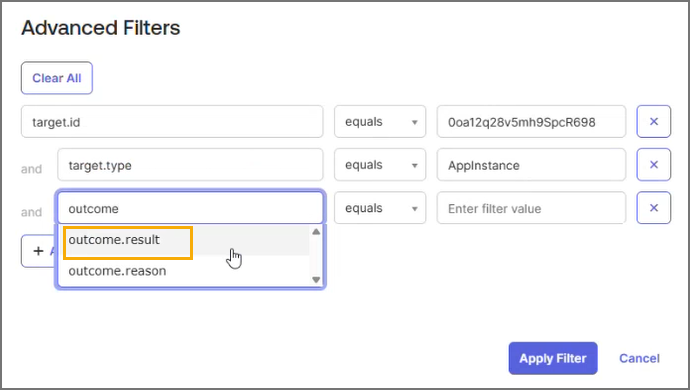
- From the outcome list, select
outcome.result.
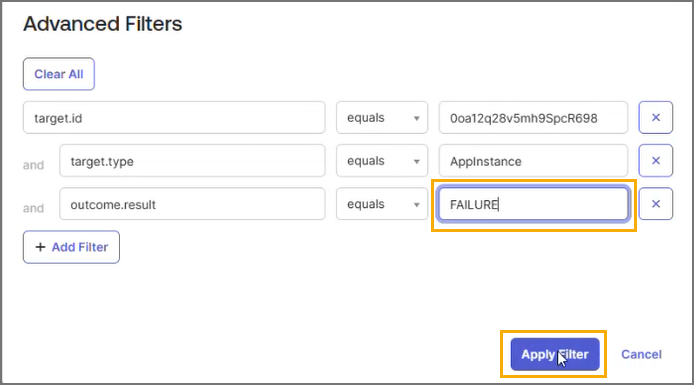
- After the equals list menu, in the Enter filter
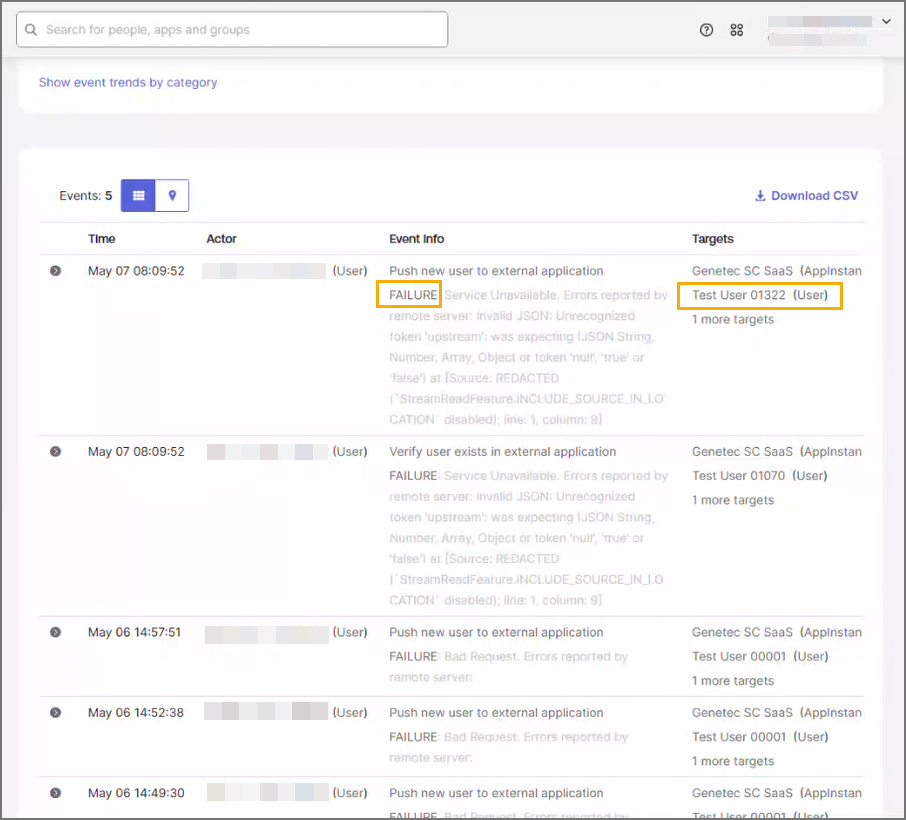
value field, select FAILURE and click
Apply Filter.
- In the Enter a field to filter by field, click the field
and from the list select outcome.
- Check the Events list for failures.
Solution 3: Resubmit the user provisioning task that encountered issues
- In the Okta Admin Console, click .
- In the Tasks list, click the task to expand and display its contents.
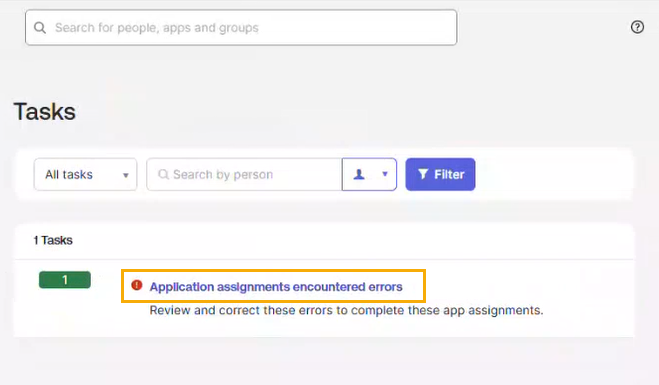
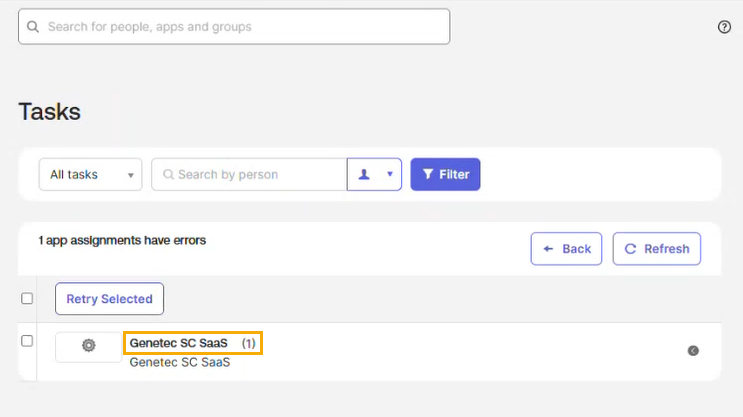
- Click the application name in the Task list to display more
information about the failure.
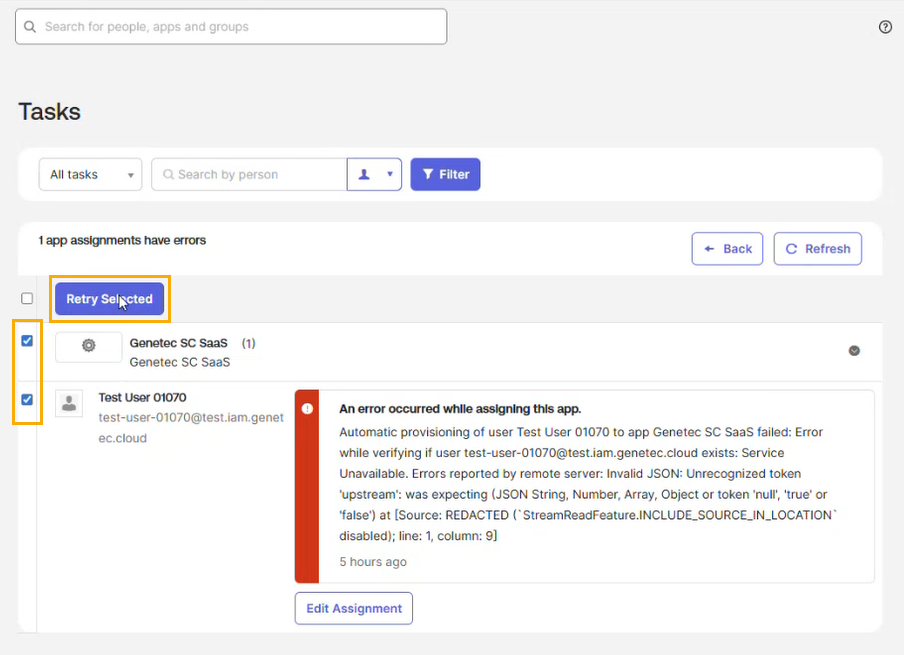
- Select the checkboxes next to the application and the user rows, and then click
Retry Selected.
- Sign in to Security Center SaaS and confirm that the user was synchronized
successfully.Tip:If the user has no roles assigned, assign roles as needed.