Event data
Event data is the contextual information that accompanies every event. Event data can be used to add conditions to automation triggers and to contextualize automation responses.
Common information
- Source entity
- The origin of the event. To find out which entity types correspond to which event
types, see Event types.Note:Not all event types are available in Security Center SaaS.You can reference the following source entity properties individually as variables in automation response actions:
- Source ID (the unique identifier, or GUID)
- Source name
- Source description
- Event location
- The event location is only available for certain event types. For example, events associated to a Patroller unit, or events associated to a record type, such as Record updated and Record fusion events.
Specific information
Some event types feature additional information that you can use to add conditions to automation triggers and contextualize response actions.
The following list describes the event data that accompanies each category of event types:
- Access control events
- Events such as Access granted and Access denied include the
cardholder and the credential that are involved.
Most access control events have three versions, corresponding respectively to a door (
), a cardholder (
), or a credential
(
). When you
configure an automation trigger, make sure to select the event type and the
When argument that corresponds to the source entity you wish
to specify as the Source argument.For a door event, the source entity must be a door (
) or an access point (
), but you can add cardholders and
credentials as conditions.
- ALPR events
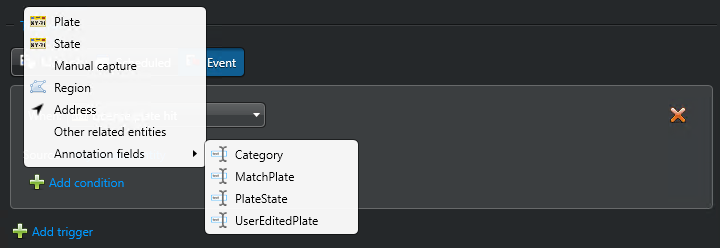
- There’s a host of fields that you can use to add conditions to ALPR events such as
License plate read and License plate hit. To find out what information is available, click Add condition and select a condition.
For more information, see Adding conditions when creating event-to-actions for license plate reads.
- Camera events and custom events
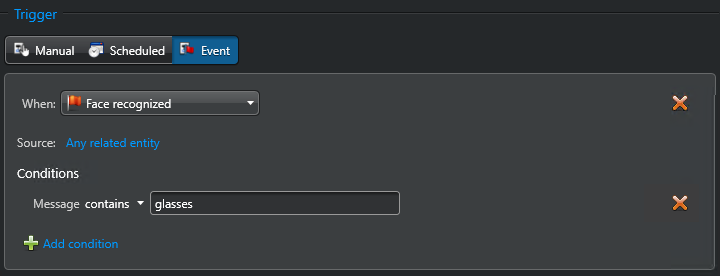
- For camera events (video analytics) and custom events, event data are not exposed as
specific conditions, as is the case for ALPR events. In this case, the event data is
treated as a text message. You can evaluate the event data with the
Message condition using the following operators:
equal tonot equal tocontainsstarts withends within(see "Special operators")not in(see "Special operators")similar to(see "Special operators")not similar to(see "Special operators")evaluates to(see "Special operators")
Except for the
evaluates tooperator, all other operators assume that the event data (Message) contains a single value.Example:
Best Practice:When a specific condition exists, such as Gender and Age for the Face recognized event, we recommend using the specific condition rather than the Message condition.
Special operators
- In / Not in
- Use these operators to check whether the event data (Message) is found in a
list of values separated by semicolons.Examples:
- 234; 456; 789
- Alfred; Daniel; Simon
- ABC123; P18EZR; 055SKR
- Similar to / Not similar to
- Two strings are similar if they differ by only one modification (character added,
character removed, character modified).For example, ABC123 is similar to:
- ABC12 (one character removed)
- ABCD123 (one character added)
- A8C123 (one character modified)
- Evaluates to
- Use this operator when the event data (Message) contains multiple fields. You
can specify the field identifier in square brackets. The following expressions can be used:
[identifier] > numericValue[identifier] < numericValue[identifier] >= numericValue[identifier] <= numericValue[identifier] = "textValue"[identifier] startsWith "textValue"[identifier] endsWith "textValue"[identifier] contains "textValue"[identifier] matches "regularExpressions"
You can combine the expressions using AND and OR operators, with the AND operator taking precedence.
expression1 AND expression2 OR expression3
Examples:
[PlateNumber] = "ABC123"[PlateNumber] startsWith "X" AND [PlateNumber] endsWith "00"[PlateNumber] matches "[02468]$"[PlateState] = "CA"[PlateState] != "QC"[Confidence Score] > 80[Relative Motion] = "Approaching" AND [Confidence Score] > 75[Some Analytics] = "Some Value"