
Deleting devices
2026-09-14Last updated
To remove hardware that is no longer needed in Security Center SaaS, you can delete your cameras, appliances, access control devices, intrusion panels, and intercoms from the system. Depending on the device type, this may also remove associated recordings and sensors.
What you should know
- Deleting a device is permanent and also removes all of its associated data, including recordings.
- Depending on the device type, deleting it might also remove connected hardware and entities, such as doors, child cameras, or sensors.
Procedure
-
In the side pane, click More (
 ) and then click
Delete
) and then click
Delete
-
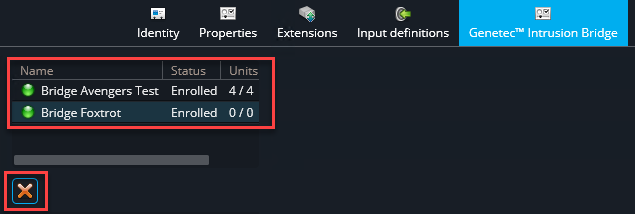
(Optional) If you're deleting a Genetec Cloudlink that is connected to an intrusion
panel, or if you deleted all the panels connected to a Cloudlink, delete the associated
Genetec™ Intrusion Bridge:
-
Select the Genetec Intrusion Bridge associated with the Cloudlink and click
Delete (
 ).
).
-
Select the Genetec Intrusion Bridge associated with the Cloudlink and click
Delete (