Monitoring entities in tiles

2026-01-19Last updated

Using the Tiles task in Security Center SaaS, you can monitor the state of your entities and manage their functions.

What you should know

  • Your system administrator must apply privacy protection to video. Privacy protection can only be applied at the system level and not for individual cameras or videos.
  • You can configure the entity state information that is displayed in the tile overlay in Options > Tiles > Tile overlay .
    Camera information displayed in a tile in Security Center SaaS.

Procedure

  1. From the navigation menu, click the Tiles task.
  2. Click Browse () to find the entity or layout you want to monitor.
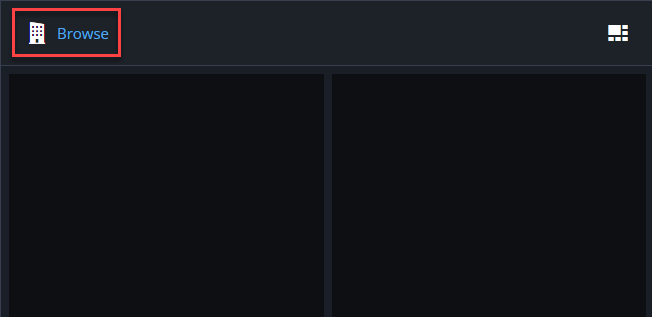
    Browse to find an entity or layout in the Tiles task.
  3. Double-click or drag the entity or layout to a tile.
    Note:
    Only cameras, doors, and federated virtual zones are supported. Selecting an unsupported entity does not populate the tile.
  4. Hover over the tile to display the camera controls.
    Camera information displayed in a tile.
  5. Right-click a tile to display the entity controls.
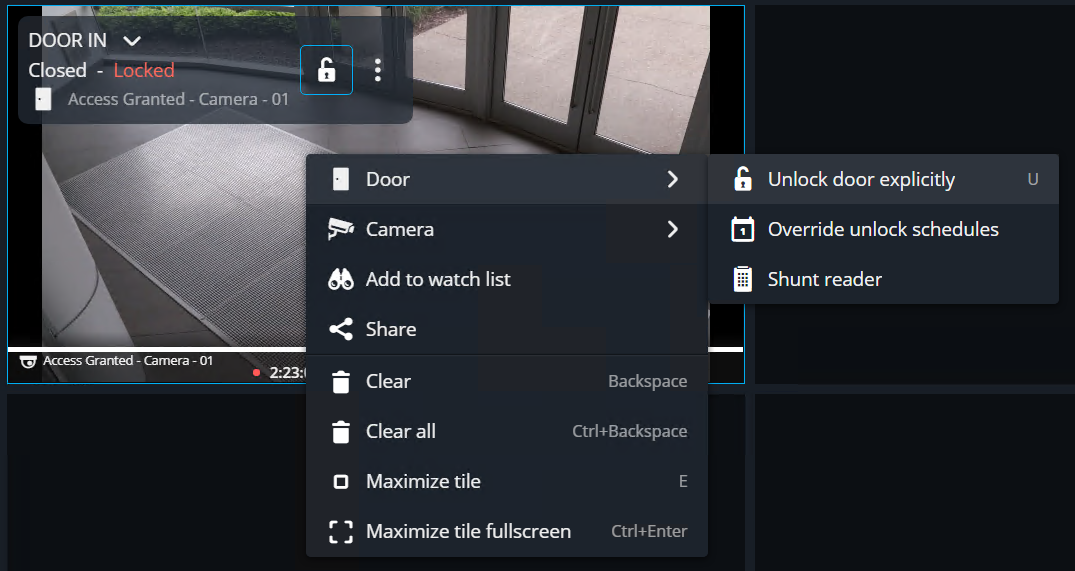
    Entity controls displayed in a tile.
  6. To clear entities from the canvas, do one of the following:
    • Right-click a tile, and then click Clear ().
    • Select a tile, and then press the Backspace key.
    • To empty all tiles, press Ctrl+Backspace.