Assigning roles to users and groups imported from Microsoft Entra ID
2026-07-07Last updated
To assign the permissions users need to perform their day-to-day tasks, you must assign roles to the users and user groups imported from Microsoft Entra ID into Security Center SaaS.
What you should know
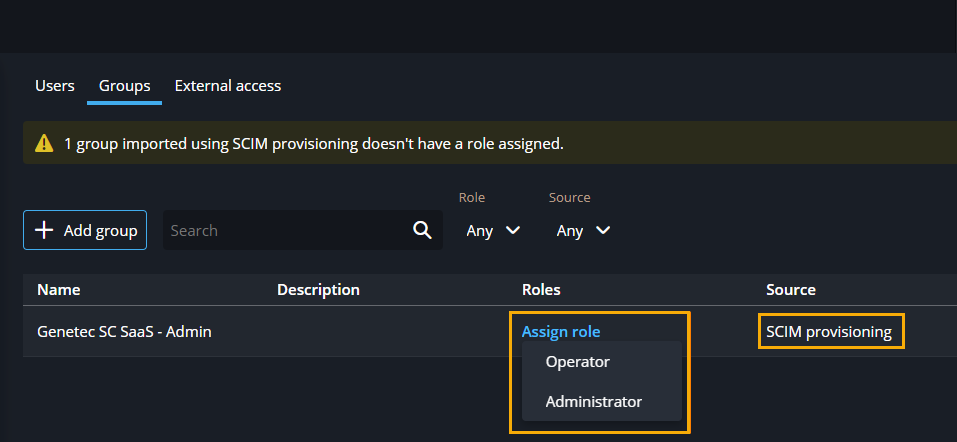
Groups that are automatically
provisioned list SCIM provisioning in the Source
column.
Procedure
-
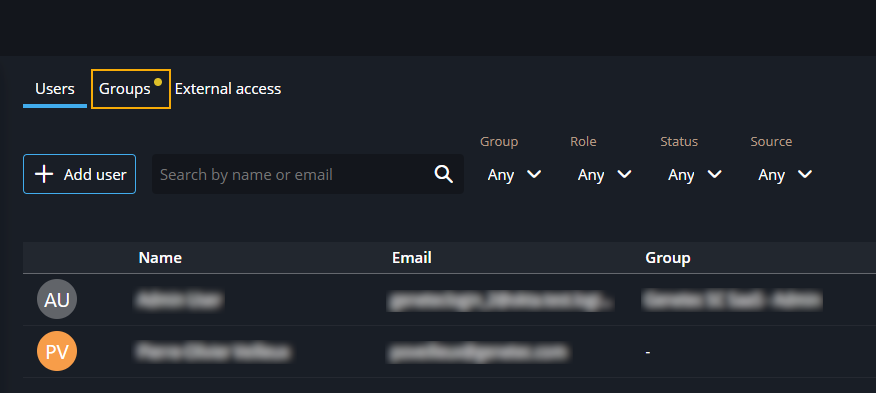
In the Configuration task, click
Users.
If a yellow dot is visible beside the Groups tab, action is required for one or more groups.
-
In the Roles column, for any groups that don't have a specified role, click
Assign role and select a role.