Viewing automatic user provisioning synchronization status in Microsoft Azure

2026-07-07Last updated

To determine when your next user provisioning synchronization occurs, you can view the synchronization status and consult detailed provisioning logs in Microsoft Azure.

What you should know

Microsoft Entra ID synchronizes with Security Center SaaS every 40 minutes. To trigger an immediate update, see Forcing a synchronization.

Procedure

  1. From your Microsoft Entra ID Overview page, click Manage and select Enterprise applications.
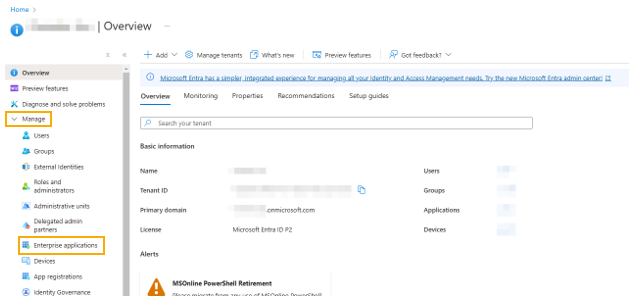
    Microsoft Entra ID Overview page showing basic account information.
  2. Search for the enterprise application that was created during the setup call with Genetec.
  3. Select the enterprise application from the list and click Provisioning.
  4. Click Overview and expand View provisioning details.
    The Completed field shows when the last synchronization occurred, and the Provisioning interval field shows the interval between synchronizations.
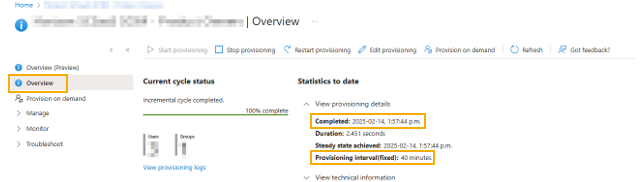
    Microsoft Entra ID provisioning status page showing the last time synchronization occurred and the provisioning interval.
  5. (Optional) To see more granular information about your automatic provisioning synchronization, click View provisioning logs.
    Note:
    If the log details are long, use the filters in the Provisioning Logs page to manipulate the data for your needs.