Defining daily schedules
2026-06-26Last updated
To set custom time constraints for situations that occur daily, you can define daily schedules and then apply them to entities.
What you should know
Procedure
- Open the System task and click the Schedules view.
-
Click Schedule (
 ), type a
name for the schedule, and press Enter.
), type a
name for the schedule, and press Enter.
- In the Identity tab, enter basic properties of the schedule, and then click Apply.
- Click the Properties tab.
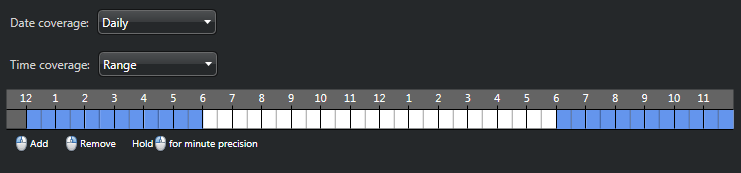
- From the Date coverage list, select Daily.
- From the Time coverage list, select All day or Range.
-
Using the time grid, set the time coverage as follows:
- To select blocks of time, left-click your mouse.
- To remove blocks of time, right-click your mouse.
- To select or remove a successive block of time, click and drag your mouse.
- To zoom in on the time grid and select or remove specific minutes, click and hold your left mouse button.
- Click Apply.
Example