
Forcing a synchronization in Okta
2026-03-17Last updated
To synchronize your most recent user or group updates from Okta to Security Center SaaS immediately, your Okta administrator can either push group changes or force a synchronization of all attributes.
Before you begin
Procedure
-
Synchronize group changes.
-
Select a group, and in the Push status column, click Active,
then click Push now.
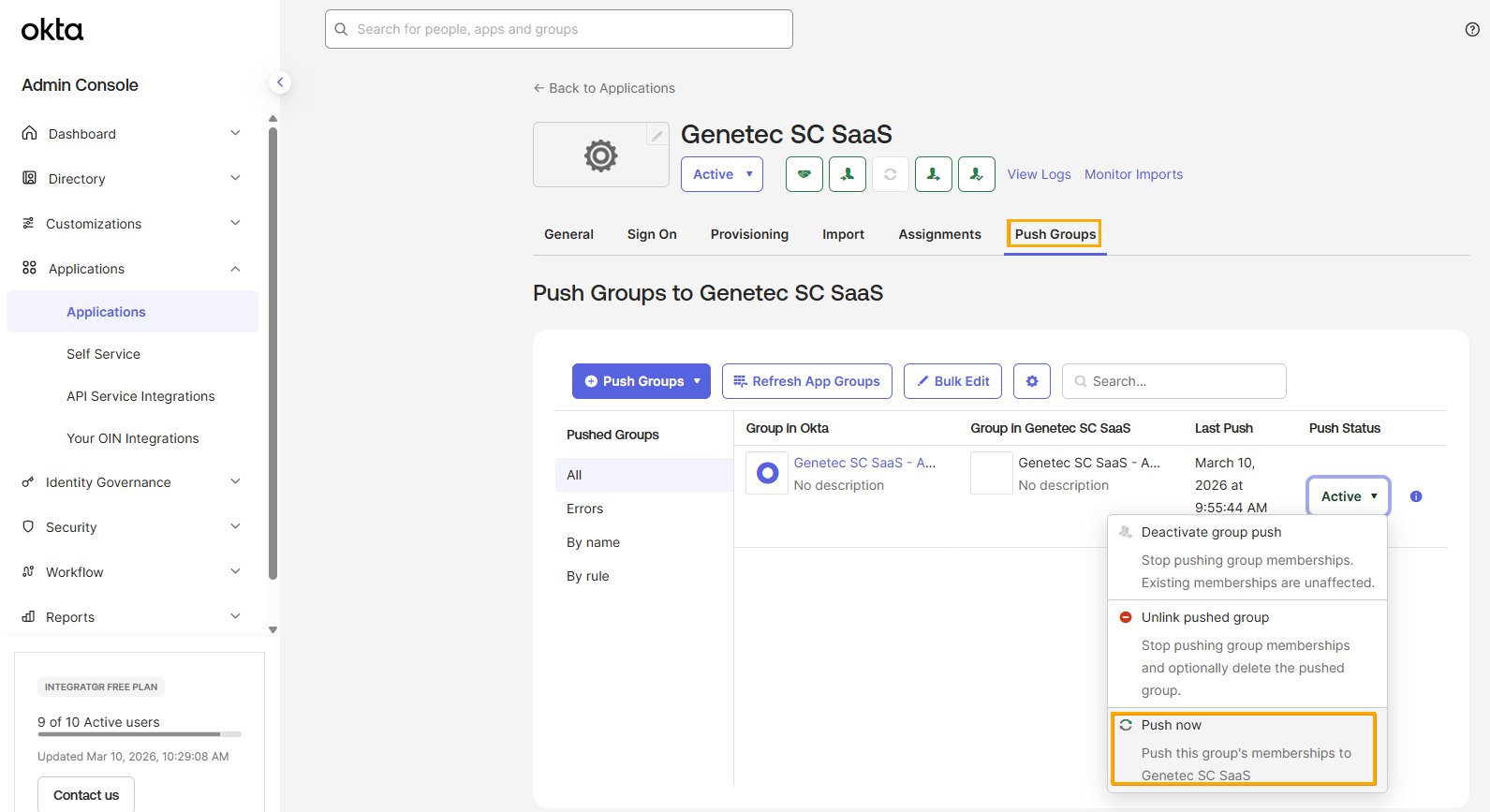 Tip:Watch the Push Status column to determine the current state of the group synchronization.
-
Select a group, and in the Push status column, click Active,
then click Push now.
-
Force a synchronization of all attributes.
-
In the Attribute Mappings section, click Force
Sync.
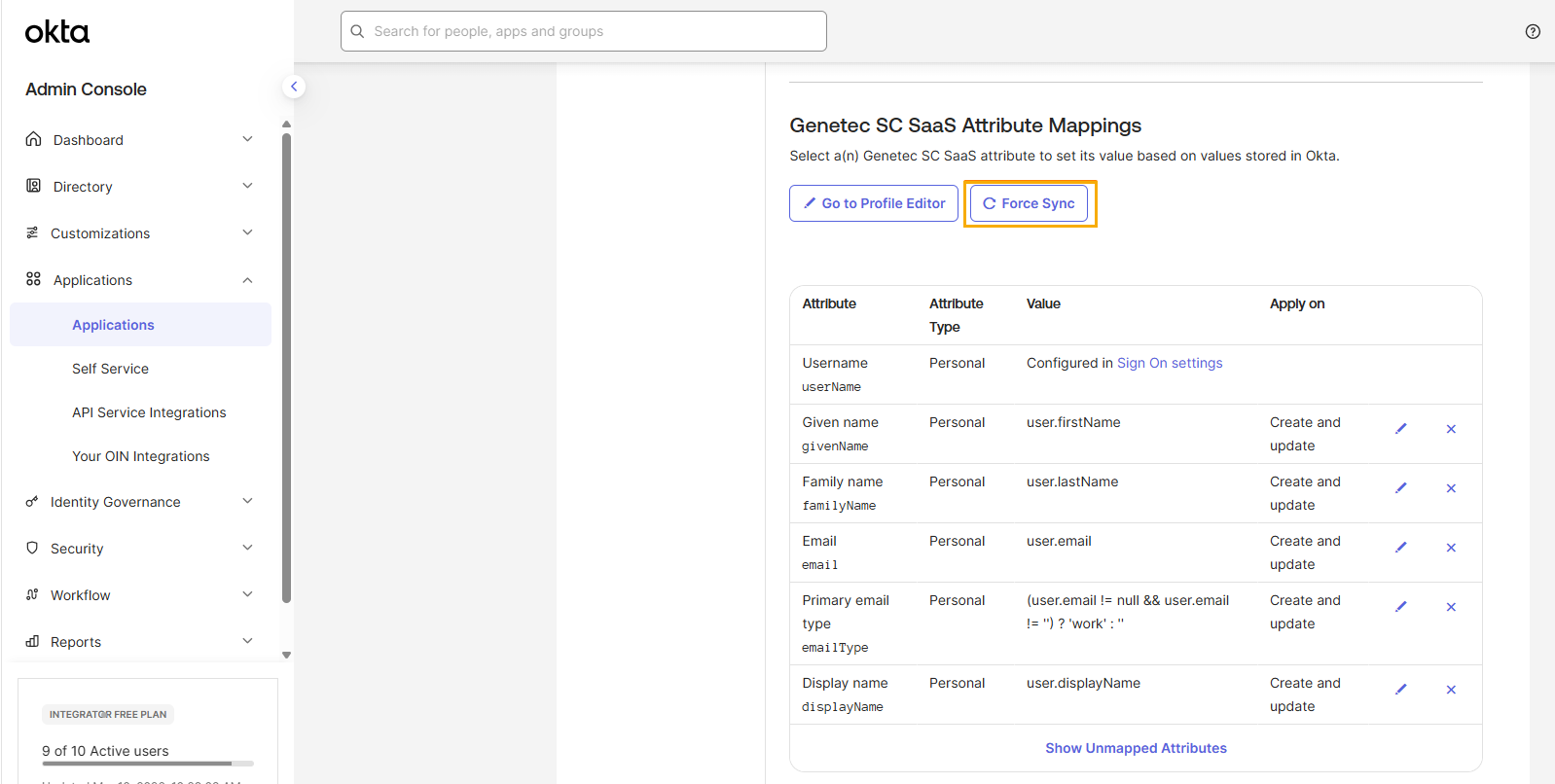 Note:There is no provisioning interval between Okta synchronizations. Updates are pushed as soon as possible.
-
In the Attribute Mappings section, click Force
Sync.