
Modifying synchronized user groups in Okta
2026-07-07Last updated
To make changes or additions to the groups that are automatically synchronized to Security Center SaaS, your Okta administrator must modify the group synchronization settings in your Okta application.
Before you begin
Procedure
- On the Applications page, select the application that was created during the setup call with Genetec.
-
Assign groups to the Okta application.
-
In the Assignments tab, click .
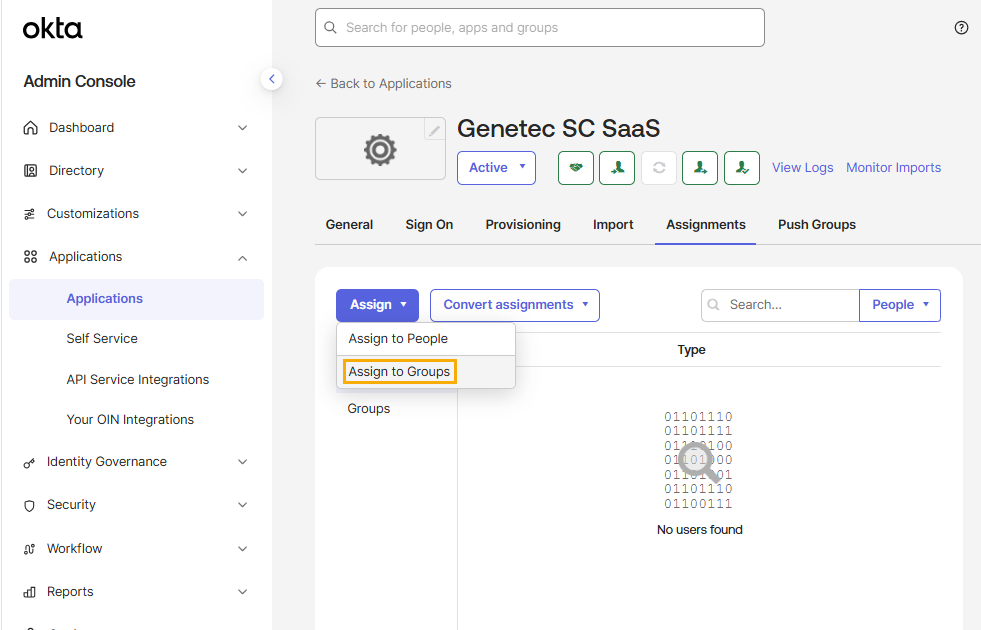
-
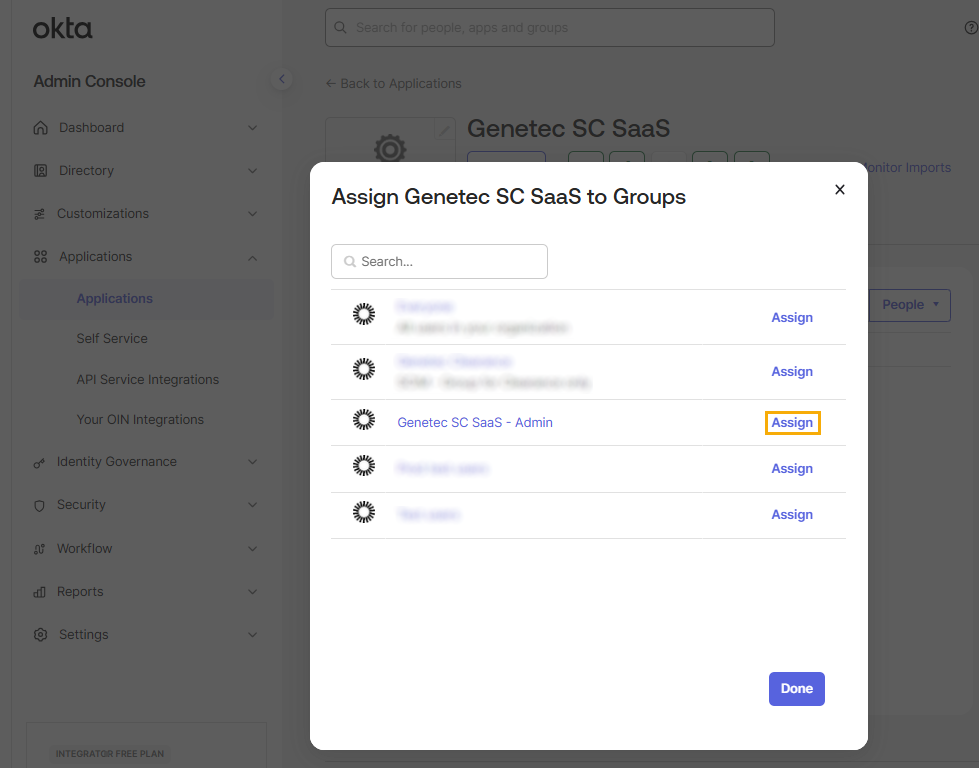
In the Assign <application name> to Groups dialog, click
Assign next to the group you want to synchronize to Security
Center SaaS.
-
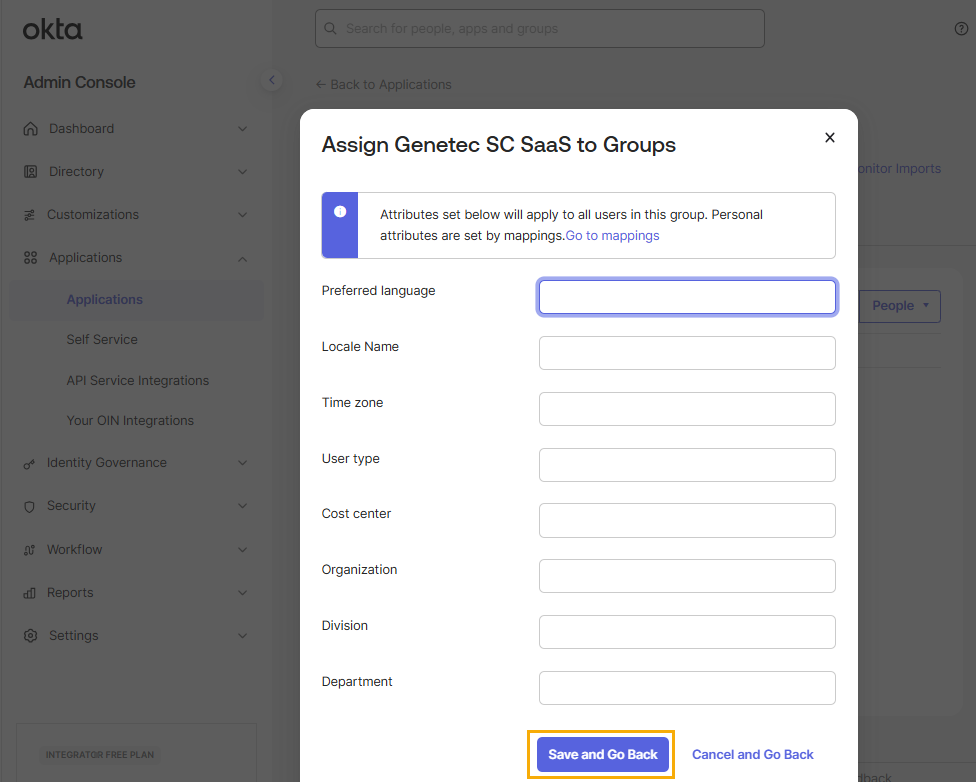
Leave the fields empty and click Save and Go Back, then
click Done.
 Tip:You can return to the Assignments list at any time to see the groups assigned to your application.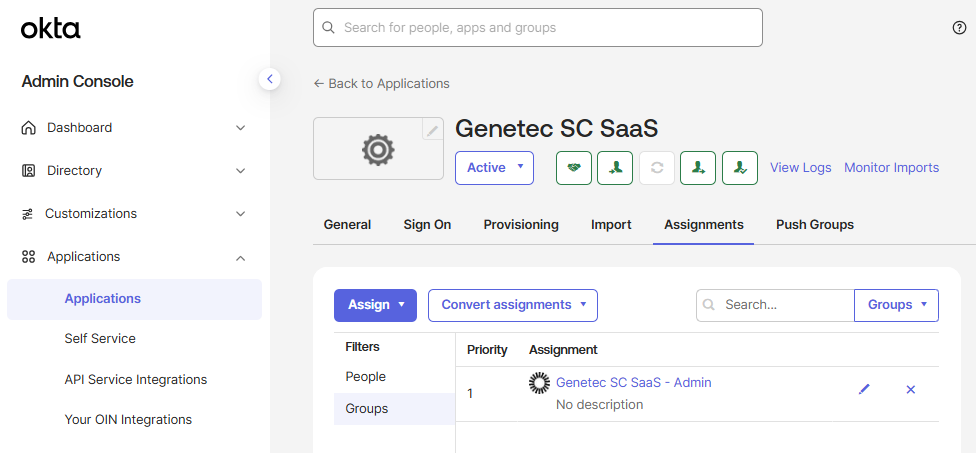
-
In the Assignments tab, click .
-
Push the groups to Security Center SaaS.
-
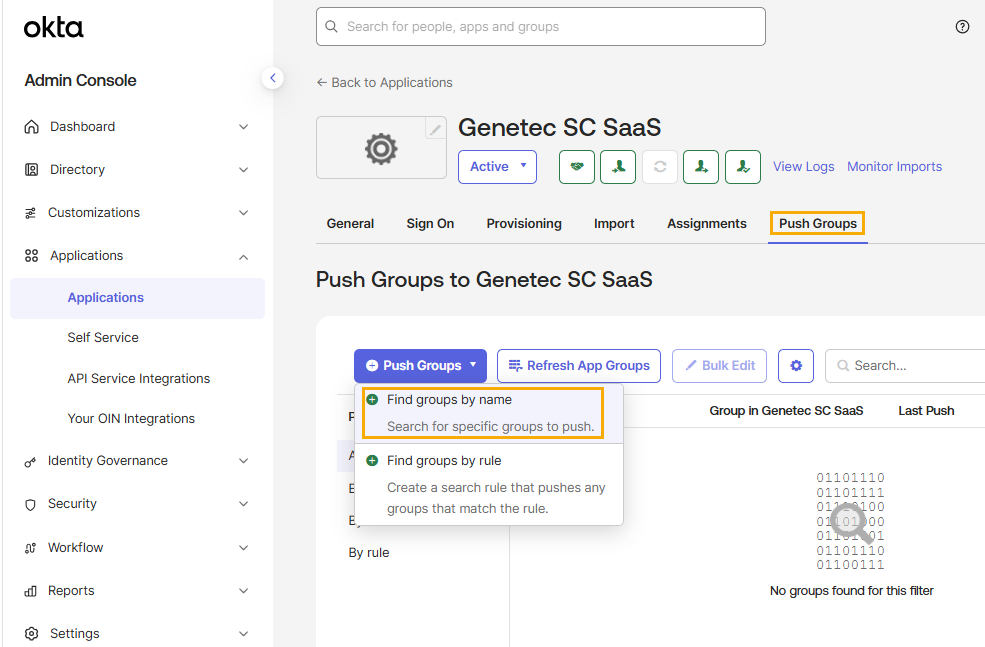
In the Push Groups tab, click Push
Groups, then click Find groups by name.
-
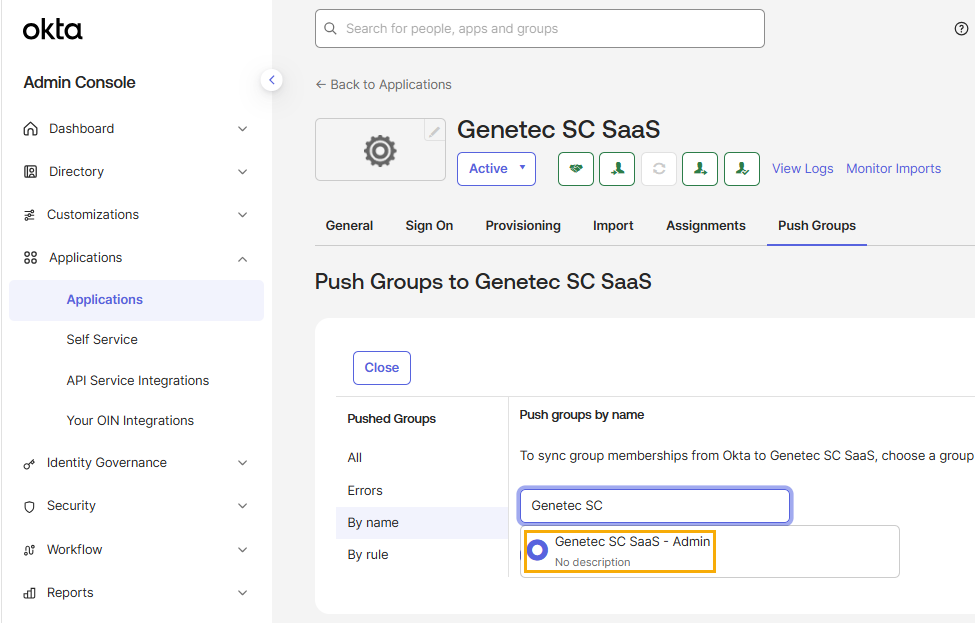
To sync group memberships from Okta to Security Center SaaS, enter the name of a
group in the search field, then select the group you require from the list.
-
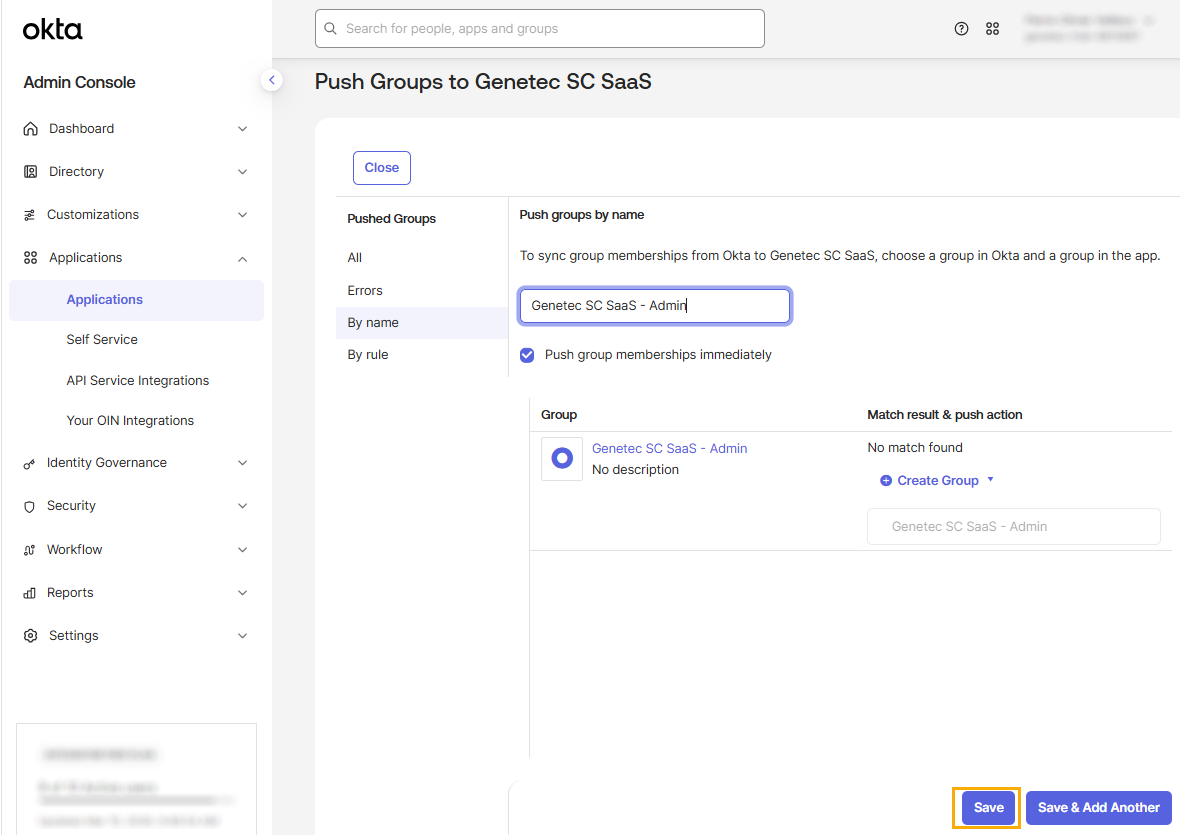
In the Push groups by name section, select Push
group memberships immediately and click
Save.
 Tip:You can return to the Push Groups list at any time to check group synchronization status.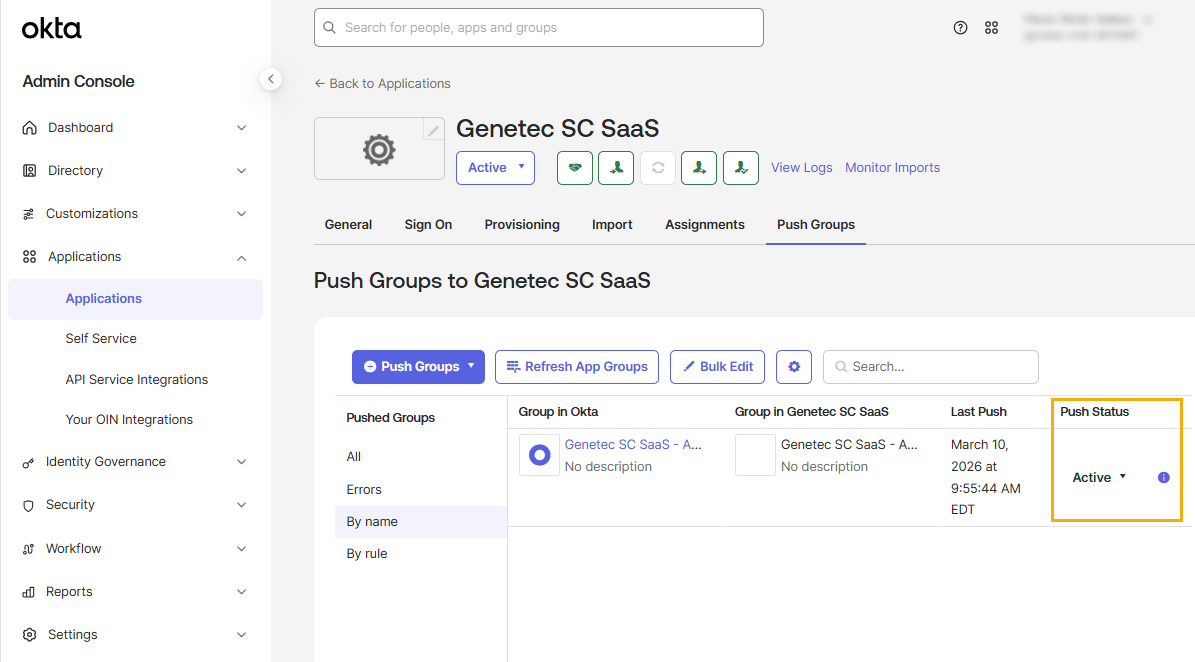
-
In the Push Groups tab, click Push
Groups, then click Find groups by name.