Qualifying event-based automation triggers

2026-02-24Last updated

Qualifying event-based automation triggers involves identifying events that initiate the automation. These events can be generic or entity-specific, have conditions applied, or need to occur a specific number of times within a defined timeframe. Also, these events can be combined using either the AND or OR operators, or sequenced with time limits for transitions.

Before you begin

Configure an event-based automation trigger.

What you should know

Event-based automations can use multiple triggers to represent complex scenarios. At least one trigger is required. Here’s what you must know about event-based automation triggers:
  • Each trigger is linked to a specific event.
    • An event can be generic or specific to certain entities.
    • Conditions can be applied to certain types of events.

      For conditions that apply specifically to ALPR, see Adding conditions when creating event-to-actions for license plate reads.

      Note:
      ALPR is only available through federation.
    • An event can be required to occur a specific number of times within a set timeframe.
  • Triggers can be grouped as follows:
    • OR: Any event triggers the automation.
    • AND: All events must occur within a given timeframe to trigger the automation.
  • Trigger groups can be sequenced with a time limit for each transition.

Procedure

  1. Specify the event that triggers the automation.
    In the Trigger section, in the When field, click Select a trigger and choose an event type.
    Tip:
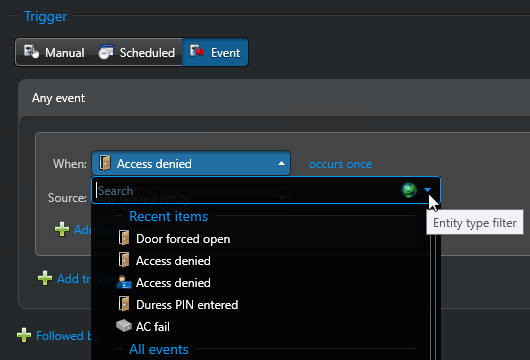
    You can filter the event types by the entity type they apply to. Click the down arrow in the event type search field and select an entity type.
    Automation trigger configuration showing where the event type filter is.
  2. Configure specific sources for the event.
    The event source, also known as the source entity, is where the event originates. You can specify multiple sources for the same event.
    1. Click the Source field and select Specific entity.
    2. Below the field that says "No items to display", click Add an item ().
    3. In the dialog box that opens, select one or more entities and click OK.
      Only entities related to the selected event type can be selected. To learn about the relationships between entity types and event types, see Event types.
      Note:
      You cannot set Source to Any related entity.
    4. If necessary, click Add an item () to add more source entities.
      The selected source entities are displayed below the Source field.
  3. (Optional) Add conditions to the trigger.
    Only some event types offer conditions. For example, for Access denied events at a door, you can limit the trigger by adding restrictions on the cardholders and credentials that are involved.
    1. Click Add condition () and select a condition type.
      The new condition is added to your trigger.

      For certain event types, the Other related entities condition is equivalent to the For condition found in event-to-actions.

    2. Select the operator and the operand for your condition.
      The available operators and the operand type depend on the selected condition type.

      For example, you can specify that a cardholder belongs (in) or doesn’t belong (not in) to a list of cardholders and cardholder groups.

    3. If necessary, click Add an item () to add more conditions.
      Conditions are combined using the AND operator.
  4. (Optional) Specify the number of required occurrences.
    Sometimes, it’s necessary for an event to occur more than once to eliminate the possibility of false alarms.
    1. Next to the When field, click the occurs once link and set the required number of occurrences.
    2. Specify the timeframe during which all instances of the event must take place
    The first trigger is configured within the initial trigger group.
  5. If necessary, add more triggers to the trigger group, combining them with either the AND or OR operator.
  6. If specific events need to occur in sequence to trigger the automation, link them using the 'Followed by' operator.