| Access control unit |
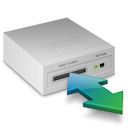 - Access control unit is
Online. - Access control unit is
Online. - Access control unit is
Offline. - Access control unit is
Offline. - Access control is showing a
Warning. - Access control is showing a
Warning.
|
- Provides access to access control unit status.
|
| Alarm |
 - Inactive alarm - Inactive alarm - Active alarm - Active alarm- Semi-transparent polygon or ellipse that matches the color of the alarm and
flashes if the alarm is active.
- A map object linked to
an active alarm is flagged with an alarm notification
bubble that has the same color as the alarm.
- If Display alarms from linked maps is enabled in the
Map section of the Genetec™ Operation options, the number
of active alarms on a linked map is shown on the Maps task
toolbar, floor controls, and links to that map.
|
- Displays alarms on maps and provides access to alarm management functions,
including investigation,acknowledgment, snoozing, forwarding, and alarm
procedures.
- Useful when no entities attached to the alarm are represented on maps.
- Provides access to alarm details.
- Supports viewing alarm information in notification and tile bubbles.
- Supports manual triggering of inactive alarms.
- Supports viewing active alarms in a tile bubble.
|
| ALPR unit (federated only) |
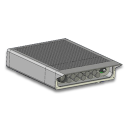 - Fixed ALPR unit - Fixed ALPR unit - ALPR unit is in maintenance
mode. - ALPR unit is in maintenance
mode.- Reads and hits are shown in notification bubbles.
|
- Displays reads and hits from federated ALPR cameras.
Tip: To monitor live video from the associated context camera, enroll
the ALPR unit as a video unit and create a separate map object for the
camera.
|
| Area |
- Map thumbnail (always linked to the map that it represents)
- Colored semi-transparent polygon or ellipse (optionally linked to a map)
|
- Provides people count and presence information when enabled.
- Supports removing selected cardholders from the area.
- Supports viewing area details and navigating to linked maps.
|
| Automation |
 - Manual automation - Manual automation - Scheduled automation - Scheduled automation - Event-based automation - Event-based automation
|
- Supports running the response actions associated with the automation.
|
| Camera |
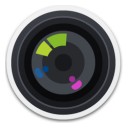 - Camera isn’t recording. - Camera isn’t recording.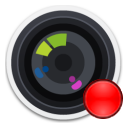 - Camera is recording. - Camera is recording. - Camera detected motion (with
green ripple effect). - Camera detected motion (with
green ripple effect). - Camera is in maintenance
mode. - Camera is in maintenance
mode.- Fixed cameras are shown with a blue field of view (FOV).
- PTZ cameras are shown with a green FOV.
|
- Displays alarms and camera events.
- Supports viewing live and playback video.
- Supports pan and tilt control for cameras with position feedback.
- Supports PTZ zoom operations.
- Supports directing available cameras to a selected map location.
|
| Camera sequence |
 - Camera sequence - Camera sequence
|
- Displays multiple cameras in a single tile bubble.
- Allows PTZ cameras to be directed to a specific location.
- Supports displaying sequence cameras in separate monitoring tiles.
Note: The Locate me right-click command finds individual
cameras in the camera sequence, not the camera sequence itself.
|
| Cluster bubble |
 - Three or more map objects,
when placed too closely to be visible at a given zoom level, are represented by
a blue cluster bubble. The bubble shows the number of the objects inside
it. - Three or more map objects,
when placed too closely to be visible at a given zoom level, are represented by
a blue cluster bubble. The bubble shows the number of the objects inside
it.Note: The count of clustered objects uses the following group sizes: 3, 4,
5, 10, 20, 50, 100, 200, 500. Counts in between these sizes, or larger, are
indicated by a plus sign (+).
|
- Supports zooming to clustered map objects.
|
| Door |
 - Door open - Door open - Door closed and no lock is
configured - Door closed and no lock is
configured - Door closed and locked - Door closed and locked - Door closed and
unlocked - Door closed and
unlocked - Door forced open - Door forced open - Door unlocked and in
maintenance mode - Door unlocked and in
maintenance mode - Door unsecured - Door unsecured- Events are displayed in
event notification bubbles. The color of the bubble
matches the color assigned to the event.
|
- Displays alarms, door states, and events.
- Provides access to detailed event information.
- Supports viewing events in notification and tile bubbles.
- Supports door control operations, including unlocking doors, overriding
schedules, and shunting readers and inputs.
|
| Reader |
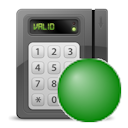 - Reader is
Enabled (or Active) - Reader is
Enabled (or Active)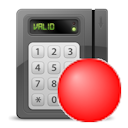 - Reader is
Disabled (or Shunted) - Reader is
Disabled (or Shunted)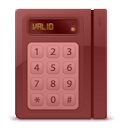 - Reader is
Offline - Reader is
Offline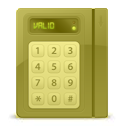 - Reader is
showing a Warning - Reader is
showing a Warning- The Enabled and Disabled status colors are configurable and
their status indicator can be shown or hidden.
|
|
| Input pin |
 - Input in Normal
state - Input in Normal
state - Input in Active
state - Input in Active
state - Input in Trouble (short
circuit) or Trouble (open circuit) state - Input in Trouble (short
circuit) or Trouble (open circuit) state - Input in Unavailable
state - Input in Unavailable
state- The state colors are configurable, and the icon can be shown or hidden
depending on the state.
Intrusion inputs with defined types:
 - Burglary-type intrusion
input - Burglary-type intrusion
input- - Door-type intrusion
input
 - Fence-type intrusion
input - Fence-type intrusion
input - Fire-type intrusion
input - Fire-type intrusion
input - Gas-type intrusion
input - Gas-type intrusion
input - Motion-type intrusion
input - Motion-type intrusion
input - Panic-type intrusion
input - Panic-type intrusion
input - Virtual-type intrusion
input - Virtual-type intrusion
input - Window-type intrusion
input - Window-type intrusion
input |
|
| Intrusion detection area |
 - Intrusion
detection area - Intrusion
detection area- The different states are:
- Disarmed (not ready)
- Disarmed (ready to arm)
- Arming
- Perimeter armed
- Master armed
- Alarm active
- The state colors are configurable, and the icon can be shown or hidden
depending on the state.
|
|
| KML object
|
- Can be anything displayed as a clickable transparent layer over a
georeferenced map.
|
- Provides map overlays for static geographic features, such as city boundaries,
roads, and hydrographic features.
- Provides map overlays for dynamic information, such as weather conditions and
traffic flow.
|
| Layout |
 - Layout - Layout- A map object that is linked to a previously saved Monitoring task layout.
|
- Displays monitored cameras as a sequence in a tile bubble.
- Supports displaying layout cameras in separate monitoring tiles.
|
| Map link |
- Map thumbnails, text, icons, images, or colored geometrical shapes.
|
- Supports navigation to linked maps.
- Enables map navigation without using the Maps toolbar.
- Useful when the map is displayed in the Monitoring
task.
Note: If Display alarms from linked maps is enabled in the
map options, the number of active alarms on a linked map is shown on the link to
that map.
|
| Mobile user |
 - Mobile user with no
picture - Mobile user with no
picture
|
- When Share location is enabled on
Genetec™ Mobile devices, shows the locations of mobile users and lets you
message them and share entities.
- Provides access to the Security Center SaaS username.
- Displays the user's profile picture, if available.
|
| Output relay |
 - Output relay in
Normal state - Output relay in
Normal state - Output relay in
Active state - Output relay in
Active state - Output relay in
Unknown state - Output relay in
Unknown state
|
|
| Records |
- Records are data structured according to a given record type and intended to enhance
situational awareness or add context to your maps. The display of records on
maps is controlled by the Record Fusion Service.
 - Default representation with
the first letter of the record type name - Default representation with
the first letter of the record type name - Custom representation with
user-selected color and icon - Custom representation with
user-selected color and icon- Records can also be represented as colored polygons.
|
- Provides access to record details and associated map information.
- Supports creating map-based records using eligible record types.
|
| Text, images and geometrical shapes
|
- Text, icons, images, and colored shapes (polygons and ellipses)
|
- Provides visual map annotations, including text, images, icons,polygons, and
ellipses.
- Can be used to identify points of interest, provide contextual information,
create map links, or represent alarms.
|
| Zone |
 - Zone - Zone - Virtual zone - Virtual zone - I/O zone - I/O zone- The different states are: Disarmed, Normal, Active, and
Trouble.
- The state colors are configurable, and the icon can be shown or hidden
depending on the state.
|
|

 ).
Double-clicking the icon triggers the quick action instead of the map object's default
behavior.
).
Double-clicking the icon triggers the quick action instead of the map object's default
behavior.