
Overview of the Map designer task
2026-08-27Last updated
Understand the purpose of each area of the Map designer workspace and the tools available for creating and editing maps.
A map entity is a two-dimensional diagram that enables you to interact with your security equipment, while providing a reference to their physical locations and statuses. The following figure shows the Map designer task editing a map named "Montreal" in a video monitoring system.
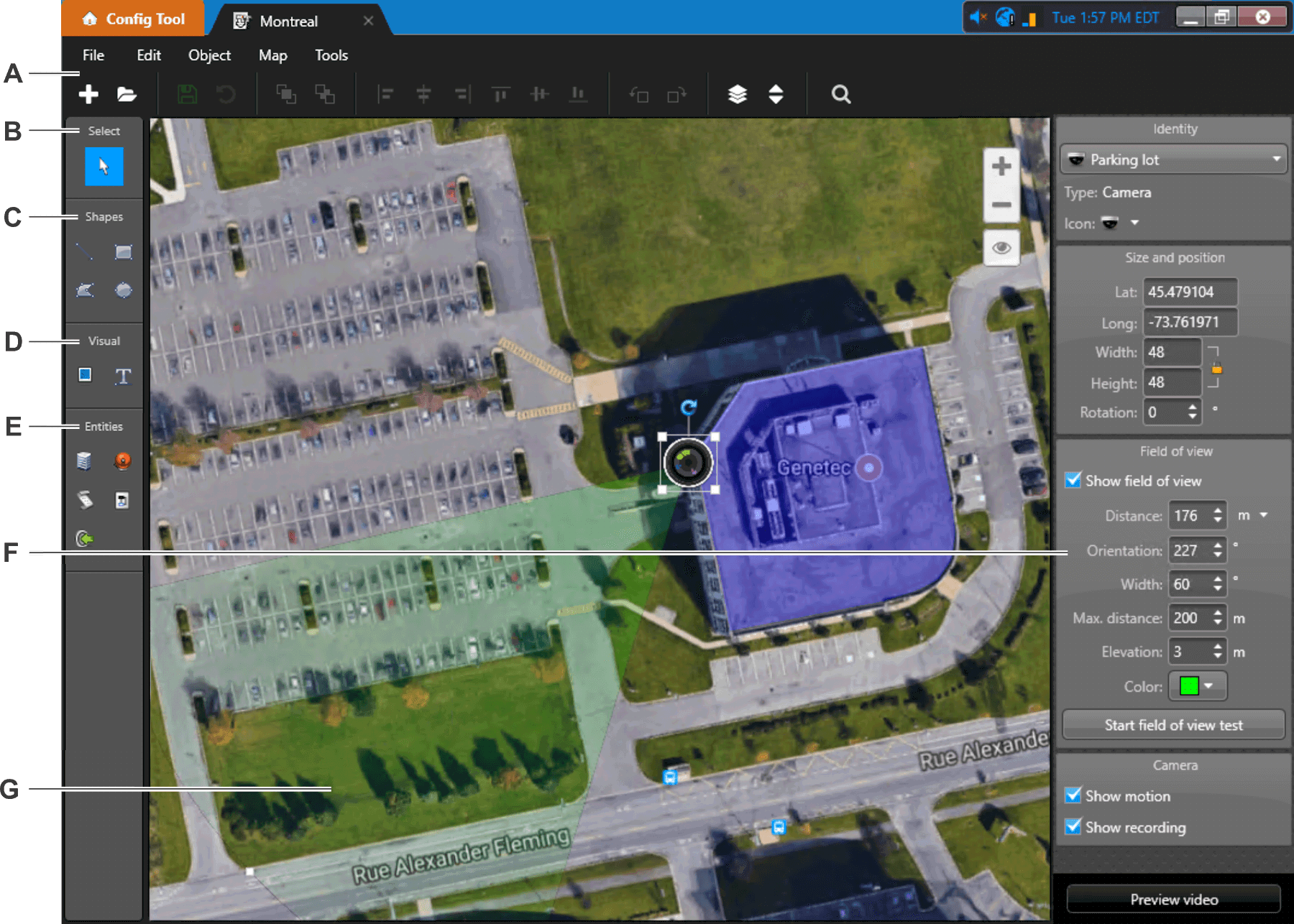
| A | Use the Map designer menu and toolbar to create, edit, and delete the maps in your system, as well as arrange and search for map objects on your map. On geographic maps, you can also search for addresses and coordinates. |
| B | Selection tool ( ): Click a map object to select it. You can also
do the following: ): Click a map object to select it. You can also
do the following:
|
| C | Draw vector objects:
|
| D | Insert images and text:
|
| E | Create map objects representing entities:
|
| F | Use the widgets to configure the selected map object. When multiple map objects are selected, only the common widgets are displayed. |
| G | Click and drag the FOV to position it on the map. |
 Draw
line
Draw
line Draw
rectangle
Draw
rectangle Draw
polygon
Draw
polygon Draw
ellipse
Draw
ellipse Insert
image
Insert
image Insert
text
Insert
text Area
view
Area
view Alarms
 Macros
 I/Os
I/Os