
Managing map presets
2026-09-29Last updated
Create, modify, delete, and configure default map presets so users can quickly access frequently used map views.
What you should know
Procedure
-
In the Map designer task, position the map in the required map view.
- Click and drag to reposition the map.
- Use the mouse wheel or the overlaid
 and
and  buttons to zoom in and out.
-
Click Select preset (
 ).
The following menu opens:
).
The following menu opens: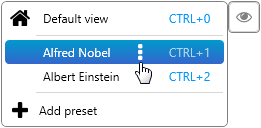
-
Do one of the following:
- Click Add preset (
 ) to save your map view as a new preset.
 - Click
 to override, rename, or
delete an existing map preset.
to override, rename, or
delete an existing map preset. - Click Default view to save the current map view as the default view.
- Click Add preset (
-
In the Map designer toolbar, click
Save (
 ).
To revert your changes, click Cancel (
).
To revert your changes, click Cancel ( ) instead.