Creating maps by connecting to a GIS

2026-03-17Last updated

You can create detailed road maps and large area maps by connecting to a third-party GIS vendor, also known as a map provider.

Before you begin

You must connect the to at least one external map provider.

For example, you can connect the Map Manager role to a TMS map provider.

What you should know

All maps must be attached to an area.
Important:
Combining data from multiple map providers is not supported. Only one provider can be used to create a map.

Procedure

  1. From the Configuration desktop homepage, open the Map designer task.
  2. Click Create.
  3. From the area tree, select the area you want to attach your map to, or click New area to create a new one.
  4. (Optional) Select the icon to represent your area with a map (Default = ).
  5. Click Next.
  6. For the type of map background, select the Geographic option.
  7. If you configured more than one map provider, click the drop-down list and select the provider you want.
    If you connected the Map Manager role to the Azure map provider, select Azure Maps (Roads) or Azure Maps (Satellite).
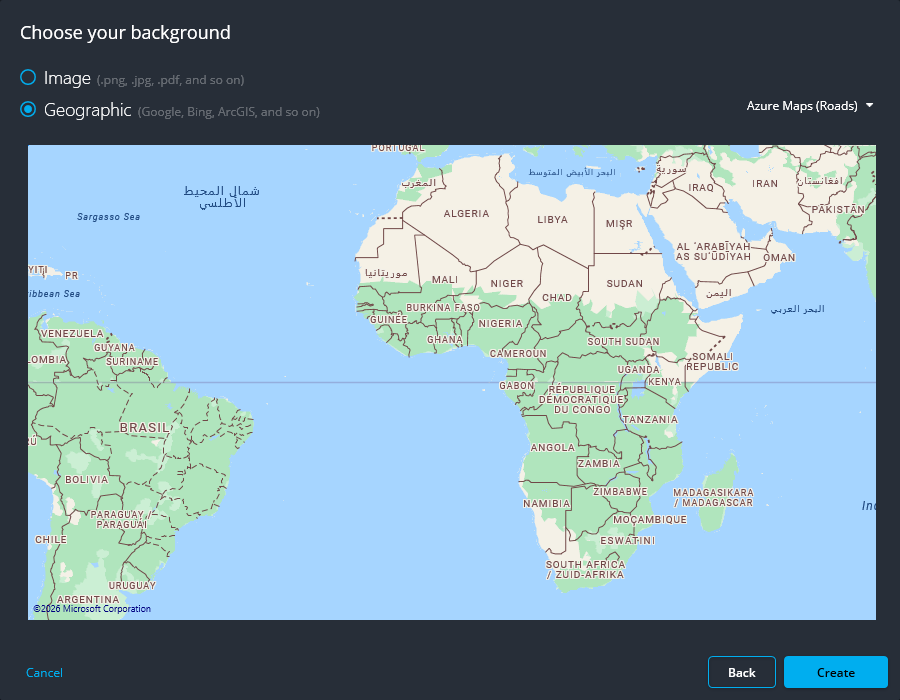
    Choose your background dialog box from Map designer with Geographic background type selected.

  8. Depending on which map provider you selected, you might have to select which maps and layers you want to import.
  9. Click Create.
    The created map is displayed in the Map designer workspace.
  10. Configure the default map view and other presets.
  11. Configure the default information to display when someone opens this map.
  12. In the Map designer toolbar, click Save ().

After you finish

Add map objects to your map.