Associating cameras with a recording profile

2026-07-09Last updated

To simplify camera enrollment, you can use recording profiles to apply the same video and storage settings to multiple cameras at once.

Before you begin

Add your recording profiles.

What you should know

You can associate a camera with only one recording profile, which you can change anytime. If you associate a camera with a new profile that has a shorter retention period, any recordings older than the new retention period will be deleted immediately.

Video data might be deleted if local storage is full or the cloud connection experiences a prolonged disruption or slowdown.

Procedure

  1. In the sidebar of the Configuration task, click Video settings.
  2. From the Recording profiles list, select a profile.
  3. In the recording profile sidebar, click the Cameras tab.
  4. Click Associate cameras and search for or select one or more cameras.
    Only cameras that support the recording profile's recording location are shown.
  5. If your camera is a multisensor camera, select one or more sensors to associate with the recording profile.
    Note:
    You can also associate an individual camera or sensor from the Devices page.
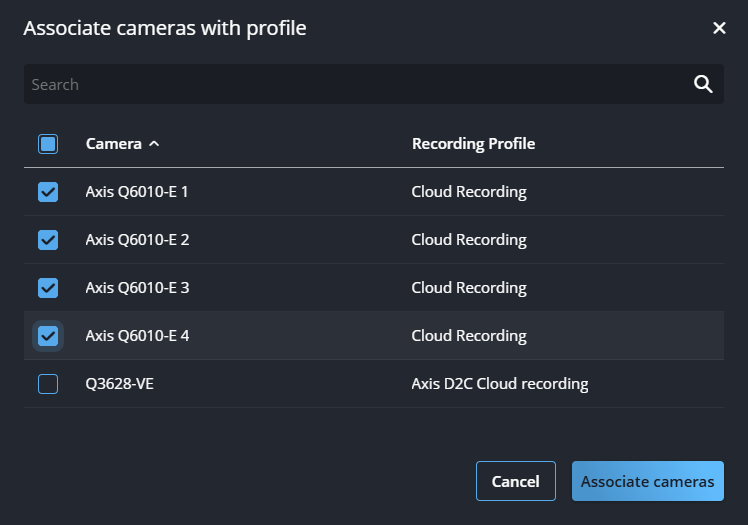
    The Associate cameras with profile dialog in the Configuration task showing selected sensors.
  6. Click Associate cameras.
    If a camera doesn't support a setting, an information message in the recording profile's Cameras tab shows that the settings have been adjusted to the nearest supported level.