2026-08-17Last updated
To use your Bosch direct-to-cloud (D2C) camera for video monitoring and recording in
Security Center SaaS, you must add it to your system.
Before you begin
- Ensure that the device has internet connectivity and
that it can reach the required endpoint
domains.
- If the camera has been activated on another
Security Center SaaS system, reset it to factory default settings.
Procedure
-
Using a web browser, connect to the camera and sign in.
-
Ensure the camera's date and time are
synchronized with your system or an NTP server.
-
To use intelligent video analytics on your camera, configure Bosch metadata analytics.
-
Connect the camera to cloud services:
-
Click .
-
Set Operation to On.
Once successfully activated, the Connectivity State
displays Available.
-
From the Available clouds list, click Security
Center SaaS.
-
Accept the Remote Portal terms and conditions and click
Continue.
-
Select a Region and click
Connect.
Note: Select the region where your camera is located to set your camera to use the
Bosch cloud region in your area.
Once successfully connected, the Connectivity state
displays Registered.
-
Click Close.
-
In Onboarding Genetec Security Center SaaS, take note of the
device serial number and device secret.
When the Bosch camera is restarted in Security Center SaaS or the camera web page, the
device secret is automatically changed.
-
Under Onboarding Genetec Security Center SaaS, click
Connect.
When the Status shows Waiting for claiming of the
device, the camera is ready to be added to Security Center SaaS.
-
In the Security Center SaaS Configuration task, on the
Devices page, click Add device and follow
the steps in the configuration wizard.
The camera is added to the device list and becomes available
after a few seconds.

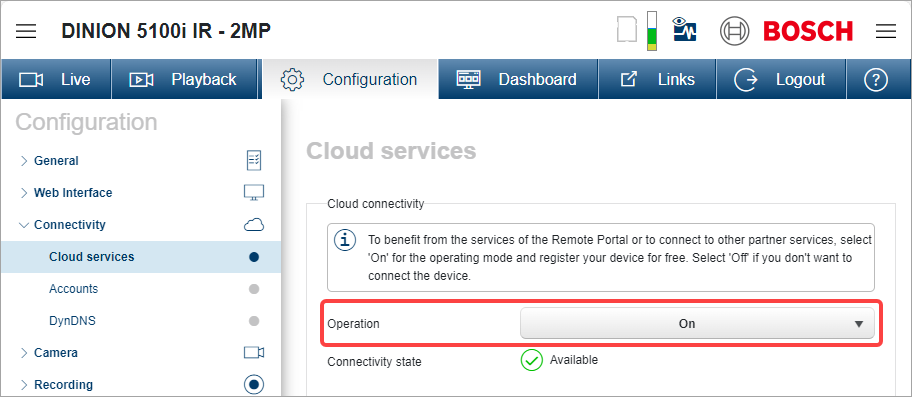 Once successfully activated, the Connectivity State displays Available.