Viewing automatic user provisioning synchronization status in Okta

2026-03-19Last updated

Your Okta administrator can check the overall status of the automatic user provisioning synchronization. They can also review the provisioning logs in Okta to see more granular details about the automatic user provisioning synchronization activities to troubleshoot and fix issues.

Before you begin

Set up automatic user provisioning in Okta.

What you should know

There is no provisioning interval between Okta synchronizations. Updates are pushed as soon as possible.

Procedure

  1. On the Applications page, select the application that was created during the setup call with Genetec.
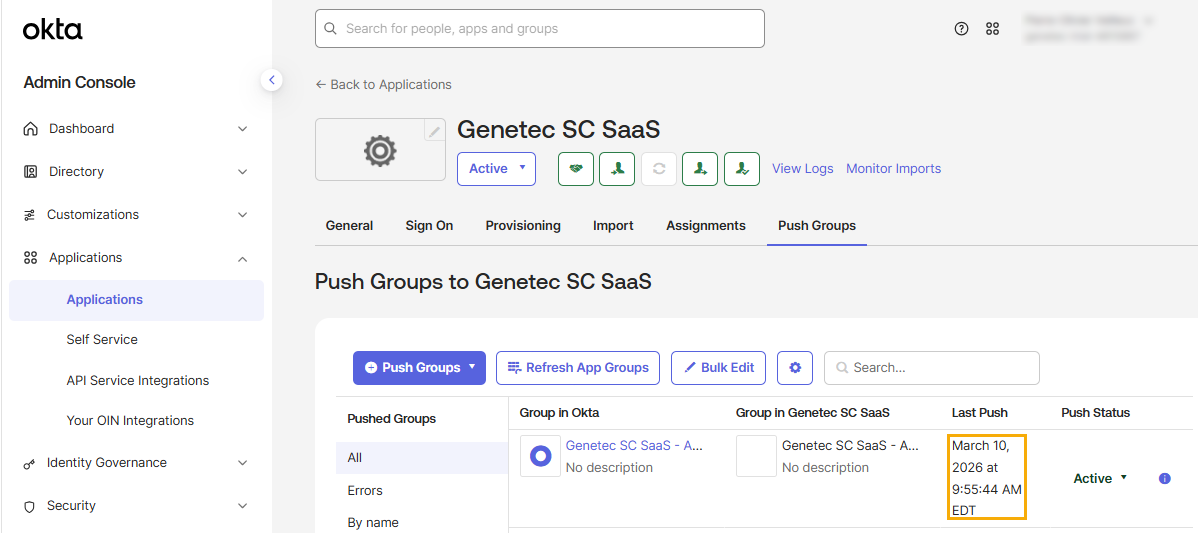
  2. To check the synchronization status for a group, click the Push groups tab.
    Okta Applications page with the Push Groups Last Push status highlighted.
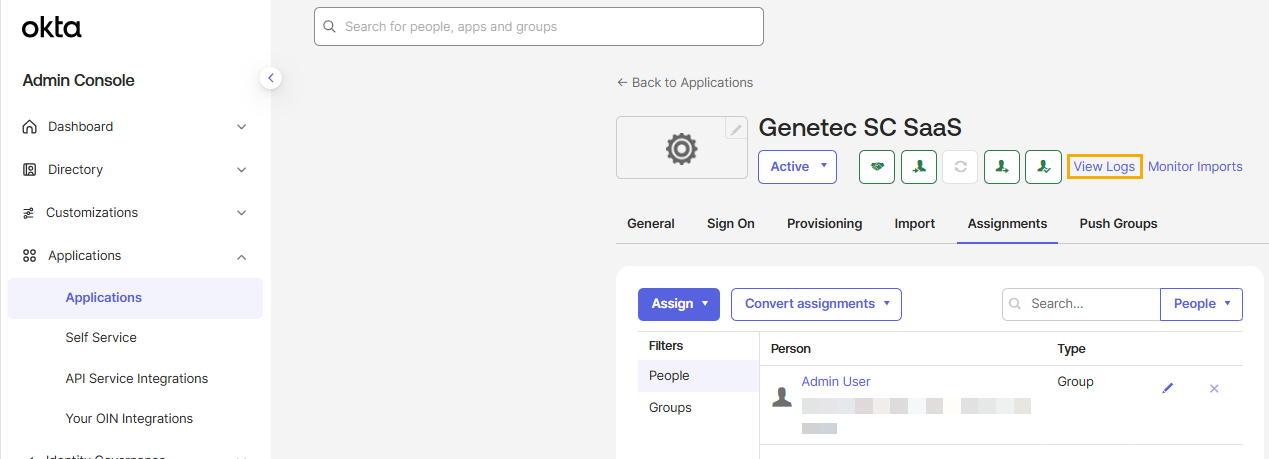
  3. To see more granular information about your automatic provisioning synchronization activities, click View Logs.
    Okta Applications page with the View Logs option highlighted.
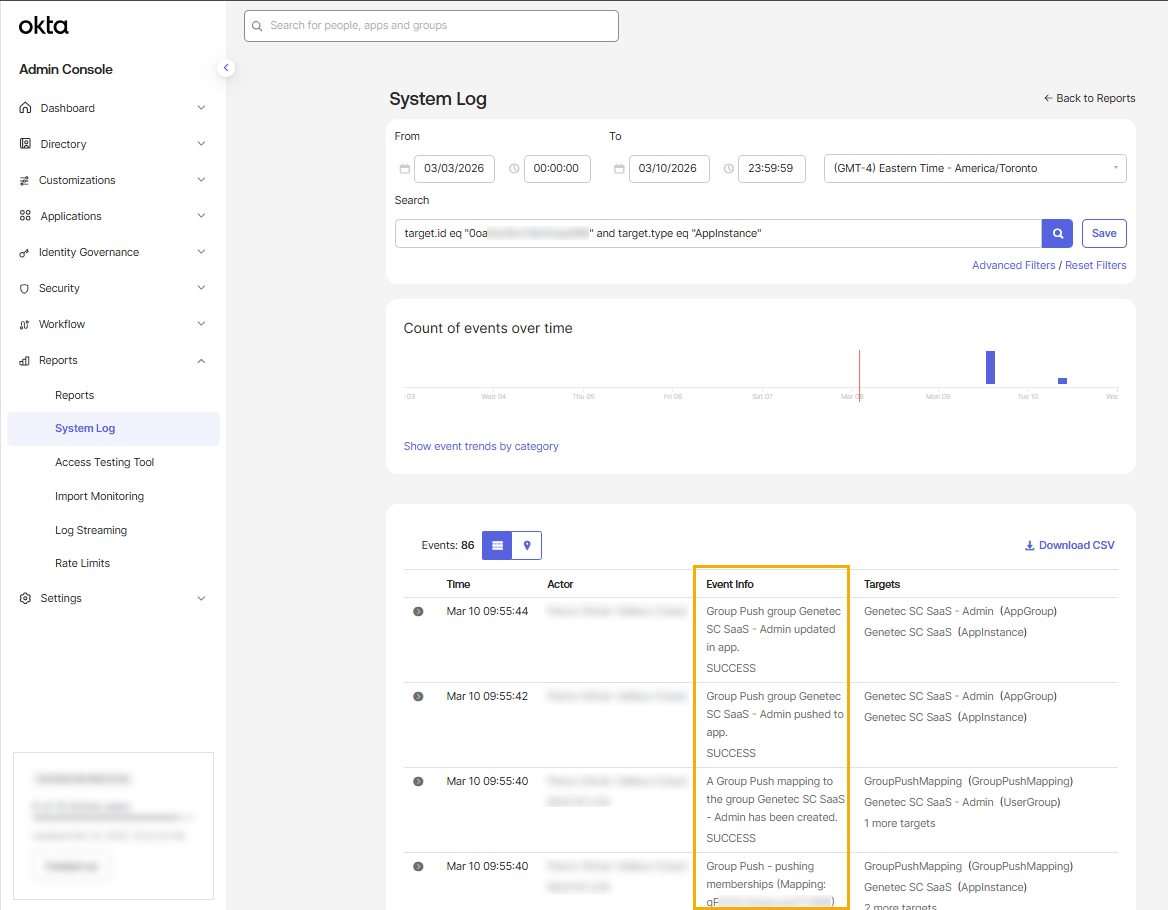
  4. On the System Log page, view the Event Info column to check synchronization activities.
    Okta System Log page with the Event Info column highlighted showing synchronization activities.
    You can also do the following:
    • Use the search field or filters to find what you are looking for.
    • Analyze event trends by category.
    • Download a CSV file to share details about synchronization activities or analyze the data offline.

After you finish

(Optional) Force a synchronization in Okta.