Replacing image map background

2026-03-18Last updated

You can change the background of an image map to update the map while preserving existing map objects.

Before you begin

Create a map from an image file.

What you should know

Replacing the background of a map lets you keep the map objects already placed on it. After you replace the background, you might need to move some objects back into position.

Procedure

  1. Open the Map designer task and select the map that you want change.
  2. Click Map > Replace background .
  3. Drag the replacement image into the dashed area or click Select file.
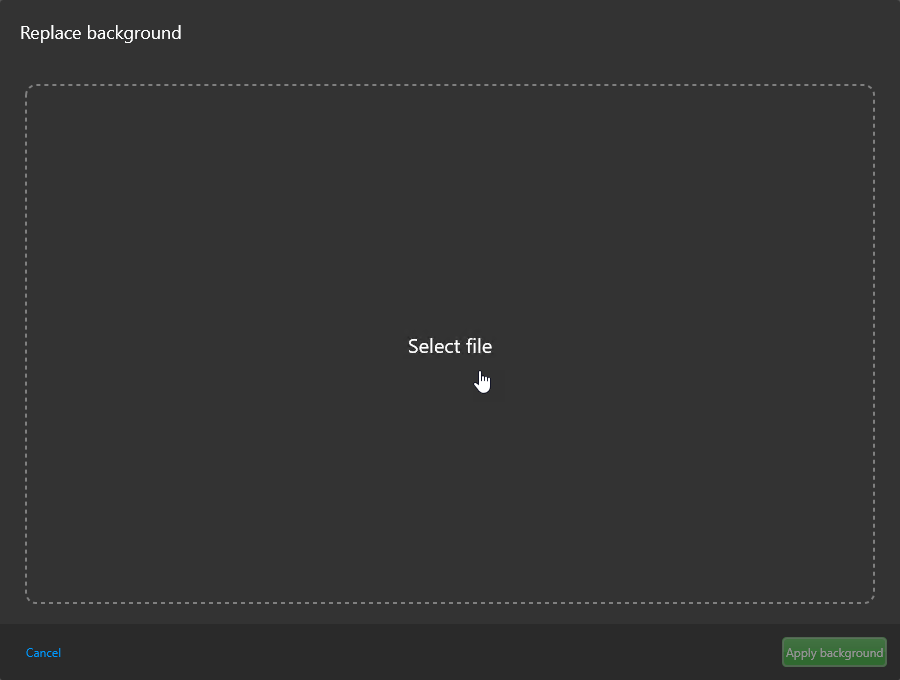
    The Replace background window in the Map designer task, with a square dashed area to drag and drop the replacement image or click Select file.

  4. In File Explorer, navigate to the desired replacement image, select it, and click Open.
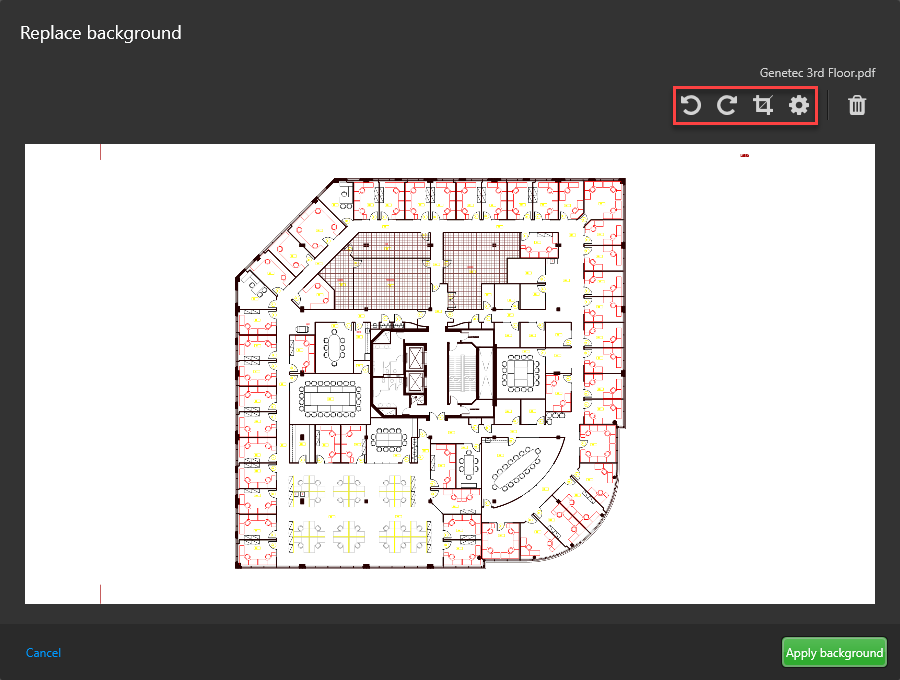
  5. (Optional) Adjust the background image with the Rotate left , Rotate right, Crop, and or Advanced settings buttons.
    The Replace background window in the Map designer task after selecting a replacement image. The rotate left, rotate right, crop and advanced settings buttons in the top-right corner are called out in red.

  6. Click Apply background.
    Map background is replaced.