
Sharing video clips
2026-07-22Last updated
To efficiently share video evidence, you can share video clips from Security Center SaaS to internal and external stakeholders using Genetec Clearance™.
What you should know
- In Security Center SaaS, the maximum video clip length that can be shared is 1 hour.
- The user sharing the video file is granted Manage permissions for the file.
- Recipients have 14 days to access and download the shared files before they’re deleted.
Procedure
- Open the Tiles task.
- Double-click or drag a camera from the Area view into a tile.
- Right-click the tile and select .
-
In the Share video clips dialog, complete the fields.
-
(Optional) To share video clips from multiple cameras, click
 and complete the fields.
- After completing the fields, click Next.
-
(Optional) To share video clips from multiple cameras, click
-
Add the desired recipients.
-
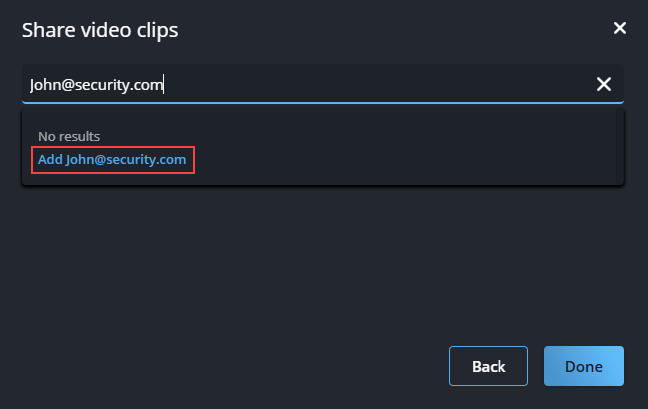
If the name or email of a recipient is not found in the system, you can enter the
email address manually and then add them to the list of recipients.
-
If the name or email of a recipient is not found in the system, you can enter the
email address manually and then add them to the list of recipients.
Example
Watch this video to learn more. Click the Captions icon (CC) to turn on video captions in one of the available languages.