Connecting Map Manager to an Azure or Google maps provider

2026-03-16Last updated

Before you can create maps based on Microsoft Azure Maps or Google Maps data, you must configure a map provider for the map type you want to use.

Before you begin

Acquire a valid Azure Maps or Google Maps license, and the license key.

Procedure

  1. From the Configuration desktop homepage, open the System task, and click Roles.
  2. From the entity browser, select Map Manager, and click the Properties tab.
  3. In the Map providers section, click Add an item ().
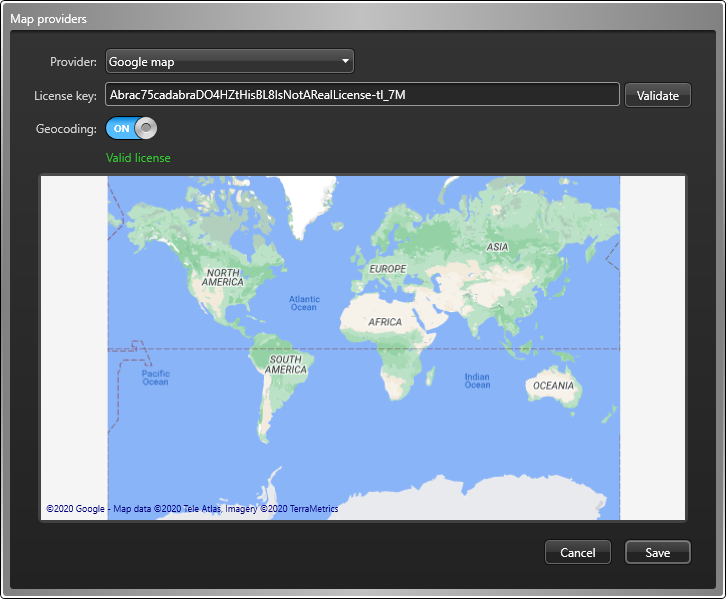
  4. In the Map providers dialog box, select one of the following map types from the Provider list:
    Azure Maps (Roads)
    General-purpose map.
    Azure Maps (Satellite)
    Satellite map without labels.
    Google map
    General-purpose map.
    Google satellite Map
    Satellite map without labels.
    Google terrain map
    Labeled topographic map with 3D terrain.
    A preview of the selected map is displayed.
  5. In the License key field, type the license key and click Validate.
    If you entered the correct license key, the license status changes to Valid.
  6. If your license includes geocoding services, turn the Geocoding option on.
    With this feature enabled, Map Manager converts latitude and longitude coordinates into a street address and vice versa. You can also search for a street address from the Maps task in Operation desktop and zoom in to that address on the map.
  7. Click Save > Apply .