If you update the AutoCAD file used to import map objects, you can resynchronize your
map with the updated file without recreating the map.
What you should know
You can add, move, or delete map objects imported from an AutoCAD file by
resynchronizing the map with the updated file.
Procedure
Open the Map designer task and select the map that you want to
update.
Click Map
> Synchronize entities from AutoCAD.
Click Select file, select the AutoCAD file you want to import
from, and click Open.
A thumbnail of the AutoCAD image is shown.
Click Next.
The entities flagged for synchronization are listed. Expand each group to see
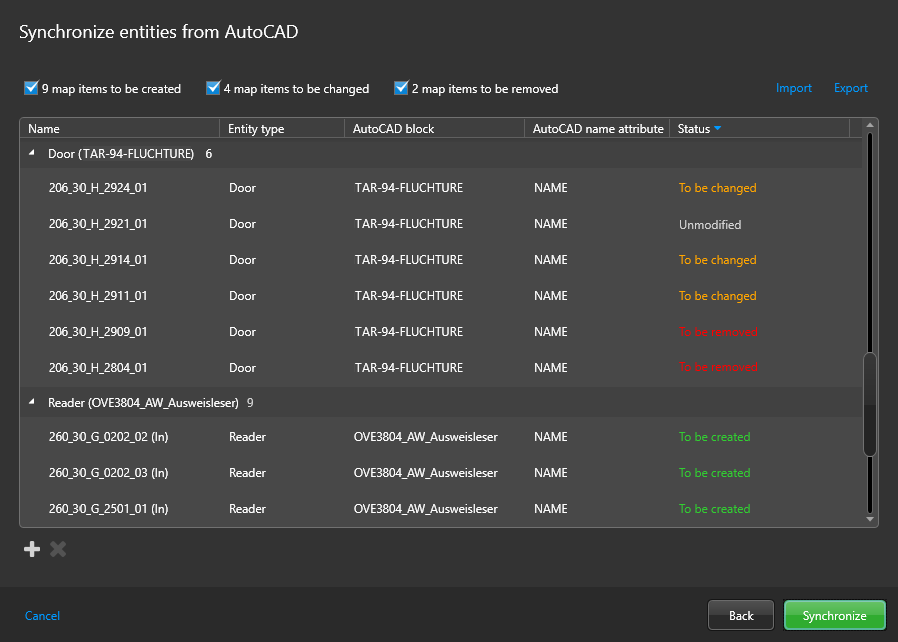
whether map objects are going to be modified, added, or removed. Clear a group of changes
to exclude them from the synchronization.
(Optional) To change the list of entities you want to synchronize, click
Import, Add (), or
Remove ().
Click Synchronize.
If you have entities to be removed in your list, confirm by clicking
Yes.