Adjusting the information displayed on maps

2026-03-25Last updated

To avoid obstructing important map details, you can adjust a layer’s opacity and set map object icons to automatically scale with the zoom level.

What you should know

Operation desktop users cannot change a map layer’s opacity or enable auto‑scaling; these settings can only be configured from Configuration desktop.

Procedure

  1. In the Map designer menu, click Map > Layers .
    A dialog box that lists all available layers for your map opens.
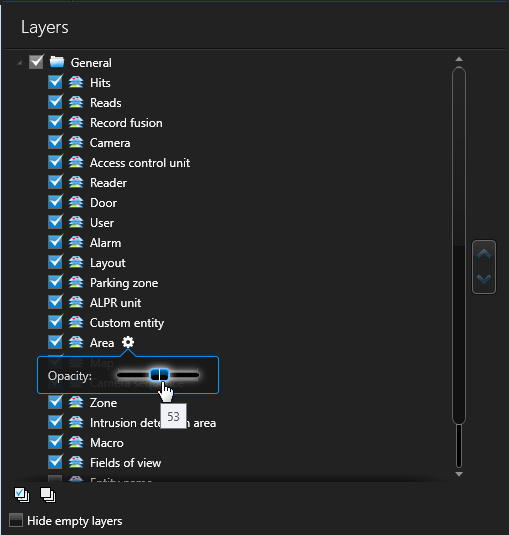
  2. Point to the layer you want to change, and click the cogwheel ().
    The Layers menu in the Map Designer, with multiple layers selected. The settings menu for the Area layer is open, with the opacity of the layer set to 53.
  3. In the widget that opens, drag the Opacity slider until you get the desired effect on the map.
  4. Control when map objects are visible on a map by doing one of the following:
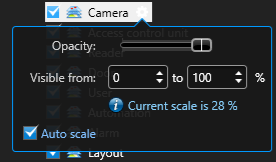
    • Set the Visible from zoom percentages to create a threshold for when a map object layer is visible or hidden from view.

      The Layers menu in the Map Designer, with the Camera layer selected, and the settings menu open.
    • Select the Auto scale option to have the map objects on a given layer automatically scale up or down depending on the zoom distance.
      Note:
      Auto scale is only available on geographic and georeferenced image maps. For more information on how to georeference a map, see Georeferencing a map image.
  5. Repeat with other layers if necessary.
  6. In the Map designer toolbar, click Save ().