Georeferencing a map image
2026-09-08Last updated
To ensure all imported maps use the same scale, georeference each map by adding at least three markers with geographic coordinates.
What you should know
Procedure
-
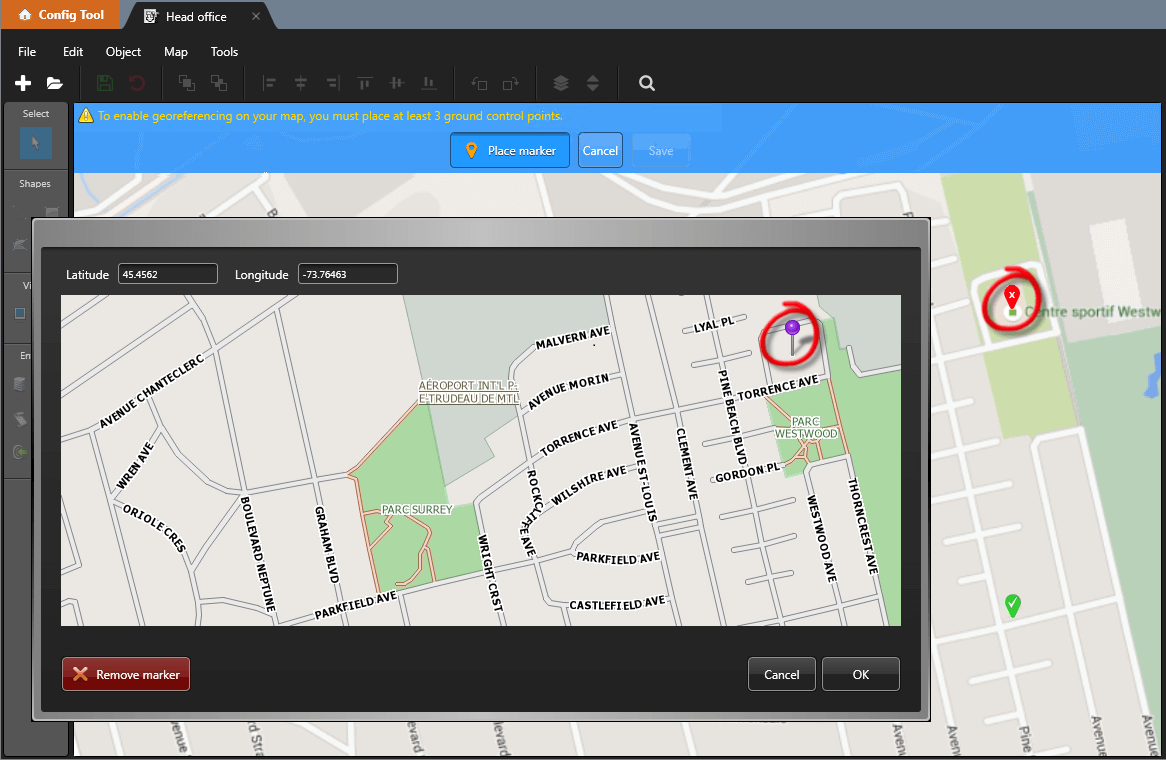
Click a location on the map.
A red marker (
 ) appears at the
selected location, and a window opens displaying a second map.
) appears at the
selected location, and a window opens displaying a second map. -
Zoom in and click the same location on the second map that corresponds to the marker
you placed in the previous step.
Note:If you already know the exact coordinates, you can enter the latitude and longitude in the provided fields.
-
To accept the pin position, click OK.
The window closes, and the red marker () is replaced with a green marker (
 ). If you close the window without selecting a location, the marker
remains red. Click it again to reopen the window.
). If you close the window without selecting a location, the marker
remains red. Click it again to reopen the window. -
In the Map designer toolbar, click
Save (
 ).
).
-
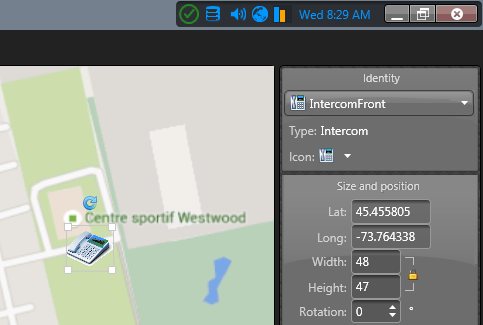
To verify that georeferencing is enabled, add an object to the map.
If the Size and position widget displays the object’s latitude and longitude, the map is georeferenced.