
Importing map objects from AutoCAD
2026-09-29Last updated
To import AutoCAD blocks as map objects when creating a map from an AutoCAD file, associate the blocks with existing Security Center SaaS entities.
Before you begin
Procedure
-
After completing the Choose your background step in the map
creation workflow, associate AutoCAD block definitions with Security Center SaaS entity
types to import the blocks as map objects.
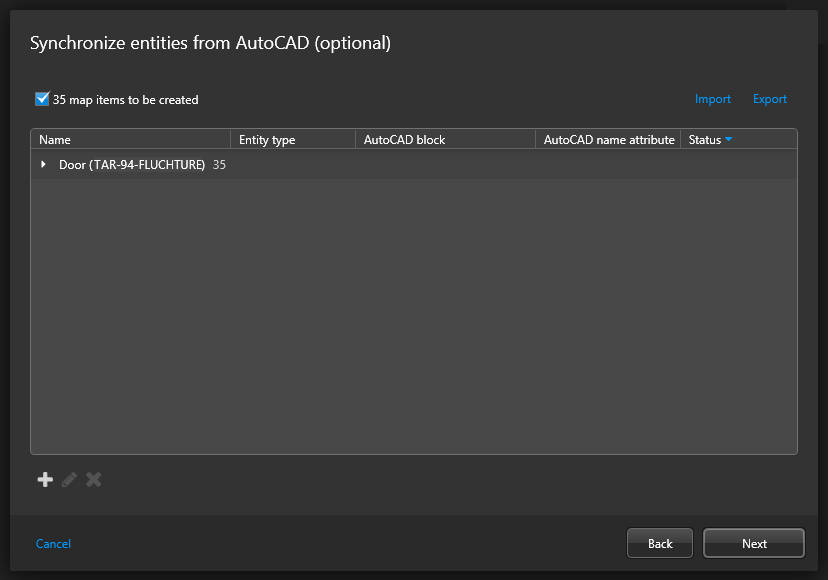 If you previously synchronized entities from AutoCAD and the same block definitions exist in your current file, the wizard loads the same mapping by default. You can edit the synchronization settings, import previously saved settings from an XML file, or define new ones.
 -
If this is the first time you create a map from AutoCAD, click
Add (
 ).
).
-
In the dialog box that opens, associate an AutoCAD block with an entity type.
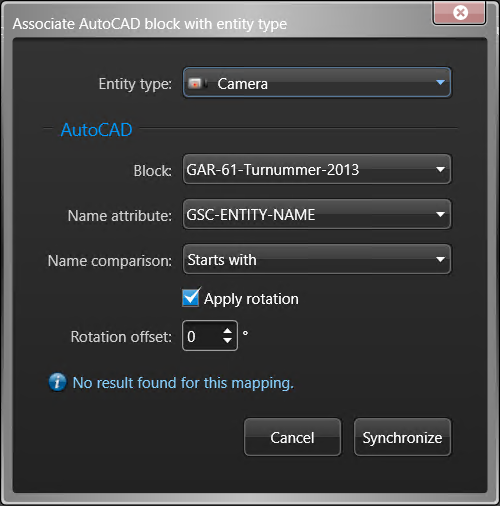
- Entity type
- Security Center SaaS entity type behind the map objects you want to import.
- Block
- Block definition to be associated to the selected entity type.
- Name attribute
- Block attribute that holds the block instance name that must match the entity name.
- Name comparison
- Search for entity names by Exact match or Starts with.
- Apply rotation
- Rotates imported map objects so they match the orientation of the corresponding AutoCAD blocks.
- Rotation offset
- Specifies the number of degrees used to adjust the imported object's orientation.
-
Click Synchronize.
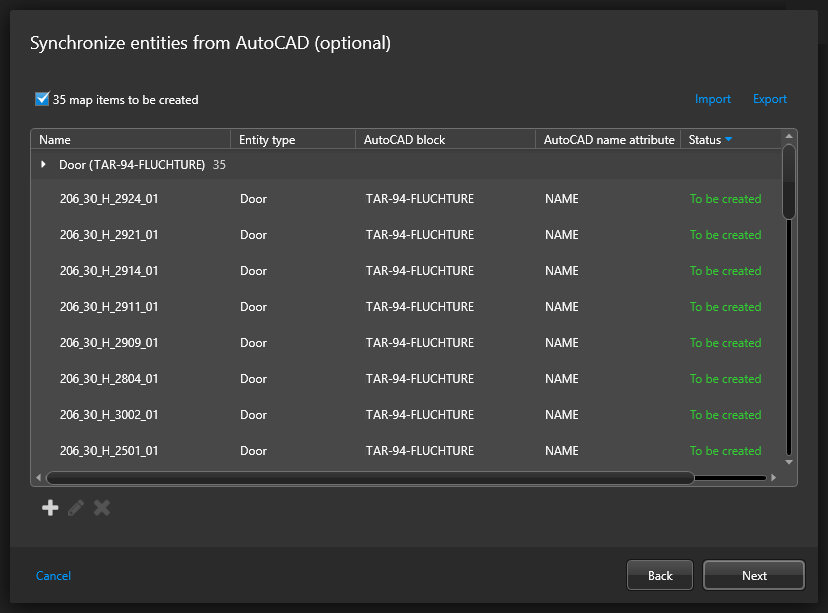
The matching AutoCAD block instances are listed and associated with Security Center SaaS entities.
-
If there are block instances you do not wish to import, select them in the list and
click Remove (
 ).
).