2026-03-17Last updated
You can create detailed road maps and large area maps by connecting to a third-party
GIS vendor, also known as a map provider.
What you should know
All maps must be attached to an area.Important: Combining data from
multiple map providers is not supported. Only one provider can be used to create a
map.
Procedure
-
From the Configuration desktop homepage, open the Map designer
task.
-
Click Create.
-
From the area tree, select the area you want to attach your map to, or click
New area to create a new one.
-
(Optional) Select the icon to represent your area with a map (Default =
).
-
Click Next.
-
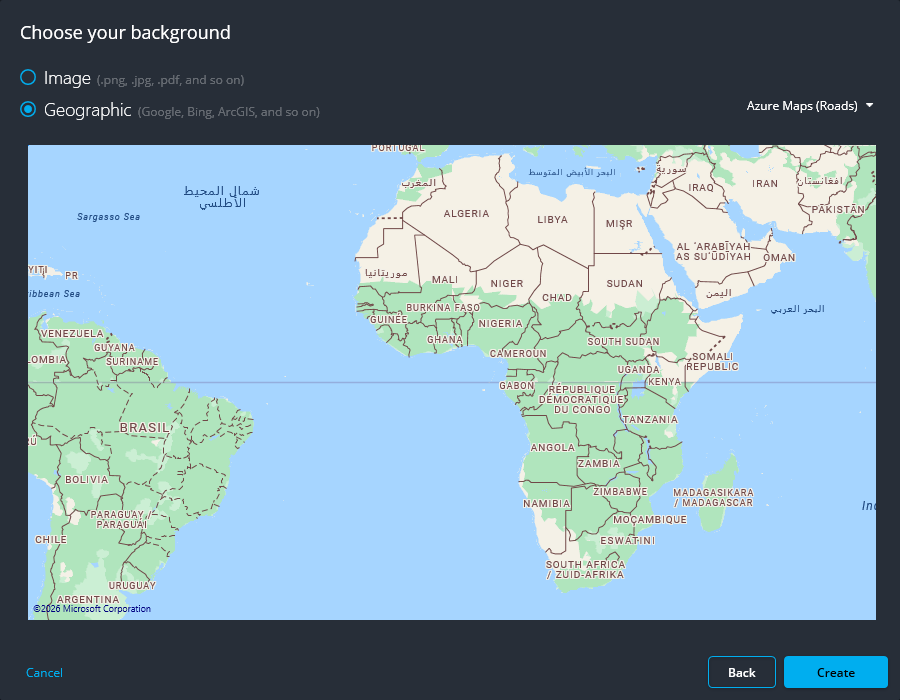
For the type of map background, select the Geographic
option.
-
If you configured more than one map provider, click the drop-down list and select the
provider you want.
If you connected the Map Manager role to the Azure map provider, select
Azure Maps (Roads) or
Azure Maps
(Satellite).
-
Depending on which map provider you selected, you might have to select which maps and
layers you want to import.
-
Click Create.
The created map is displayed in the Map designer workspace.
-
Configure the default map view and other
presets.
-
Configure the default information to display when
someone opens this map.
-
In the Map designer toolbar, click
Save (
).
After you finish
Add map objects to your map.