
Importing map objects from AutoCAD to geographic maps
2026-09-18Last updated
To position entities on a geographic map automatically, import map objects from an AutoCAD drawing that contains geographic coordinates.
Before you begin
- Create the geographic map that you want to update with imported AutoCAD map objects.
- Ensure that the AutoCAD blocks you want to import as map objects have matching Security Center SaaS entities and have latitude and longitude attributes.
What you should know
Procedure
-
Click Add (
 ).
).
-
In the dialog box that opens, associate an AutoCAD block with an entity type.
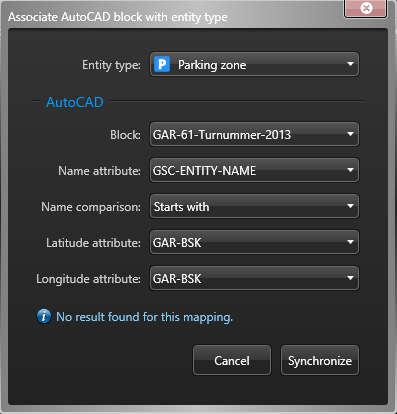
- Entity type
- Security Center SaaS entity type behind the map objects you want to import.
- Block
- Block definition to be associated to the selected entity type.
- Name attribute
- Block attribute that holds the block instance name that must match the entity name.
- Name comparison
- Search for entity names by Exact match or Starts with.
- Latitude attribute
- Block attribute that holds the GPS latitude of the map object.
- Longitude attribute
- Block attribute that holds the GPS longitude of the map object.
If no matching entities are found, the message No result found is displayed.Tip:Verify the selected block attributes and entity-matching settings, and then try again.