
Assigning a virtual output to an intrusion area
2026-09-29Last updated
To manually trigger an output on an intrusion area that is associated to a Bosch intrusion panel, you must assign the virtual output that triggers the alarm to the intrusion detection area.
Before you begin
- Map a virtual output to an input in Security Center SaaS.
- Create an intrusion area and associate it with the Bosch intrusion panel.
Procedure
-
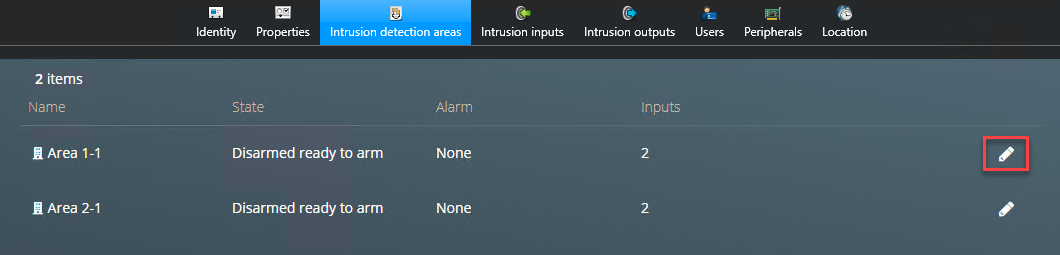
Click Edit.
Note:
If an alarm is silenced on the panel, the associated area enters a
Normal state in Security Center SaaS, instead of a
Silent state.