Defining twilight schedules
2026-06-30Last updated
To set custom time constraints for situations that cover either daytime or nighttime, based on sunrise and sunset calculations from a geographic location (latitude and longitude), you can define twilight schedules.
What you should know
Procedure
- Open the System task and click the Schedules view.
-
Click Schedule (
 ), type a
name for the schedule, and press Enter.
), type a
name for the schedule, and press Enter.
- In the Identity tab, enter basic properties of the schedule, and then click Apply.
- Click the Properties tab.
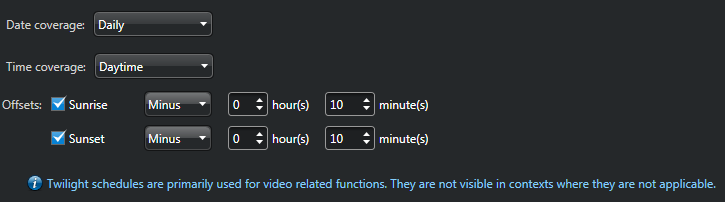
- From the Date coverage list, select Daily, Specific, or Ordinal.
- If you selected Specific or Ordinal, set up the date coverage.
- From the Time coverage list, select Daytime or Nighttime.
- Select the Sunrise or Sunset options, and then select the amount of time to offset the sunrise time or sunset time (up to 2 hours before or after).
Example