
Finding a person of interest from a monitoring tile
2026-09-23Last updated
To find a person of interest while monitoring or reviewing video, you can perform an investigation in Security Center SaaS using intelligent search. The investigation information can then be reviewed and used to build a timeline of events, including movements, interactions, and what happened before or after an incident.
Before you begin
- Make sure that your administrator has activated camera metadata.
- Familiarize yourself with intelligent search tools.
- Learn about video timeline thumbnails.
What you should know
- This procedure needs a Security Center SaaS Premium Plan. For a summary of the key features and differences between the Standard and Premium plans, refer to the Security Center SaaS Features Matrix.
- Intelligent search from a monitoring tile can be initiated using a non-forensic-capable camera, but the results (such as similar people, nearby activity, and so on) are generated from forensic-capable cameras with the Activate camera metadata checkbox selected.
Procedure
-
In the video player toolbar, click Intelligent search (
 ).
Note:If you draw the box on an empty part of the camera scene, object detection will start instead of people detection. If you pause or resume the video, you might need to press Intelligent search () again.
).
Note:If you draw the box on an empty part of the camera scene, object detection will start instead of people detection. If you pause or resume the video, you might need to press Intelligent search () again.-
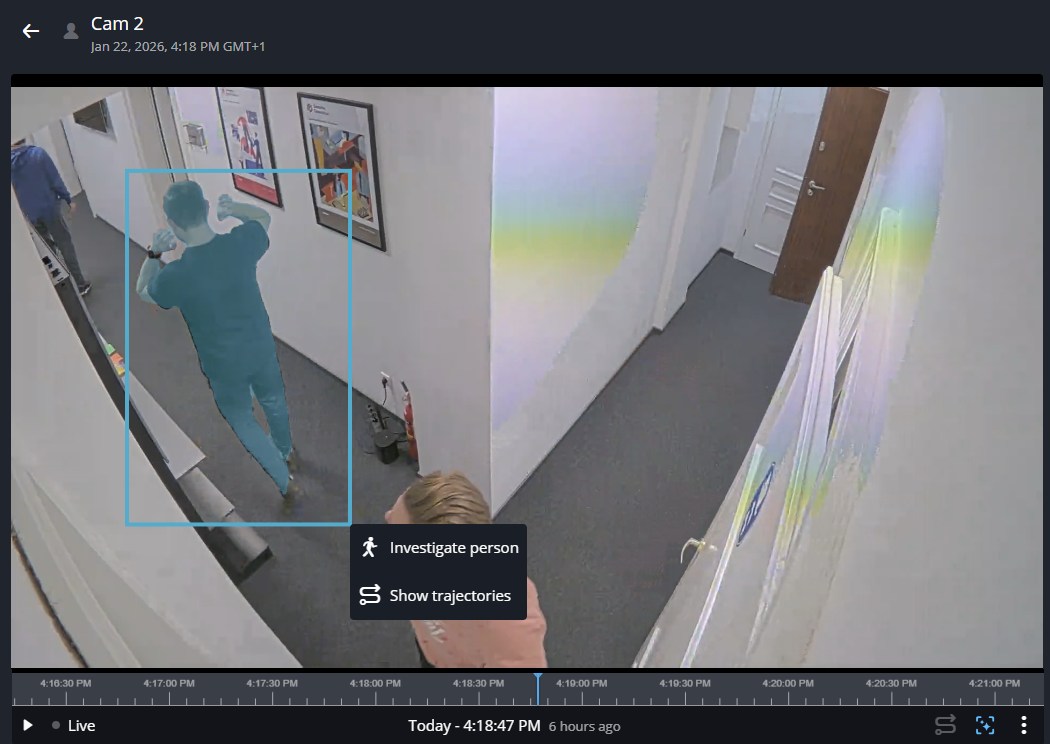
Use your mouse to draw a box around the person of interest.
-
Click Investigate person to load results matching the
selected person of interest.
Important:The search results and sections displayed in the side pane vary depending on the options you select, and change as you review or interact with video thumbnails in each section. Some of the following steps can be skipped if the section is not in your search results. Some of the steps can be repeated if you need to review multiple videos in each section.
- To visit previously viewed videos, click Go back through previously
reviewed videos (
 ) at
the top of the video player dialog.
) at
the top of the video player dialog. - To return to the previous side pane menu or results, click back (
 ) next to the section title at the top
of the side pane results pane.
) next to the section title at the top
of the side pane results pane.
- To visit previously viewed videos, click Go back through previously
reviewed videos (
-
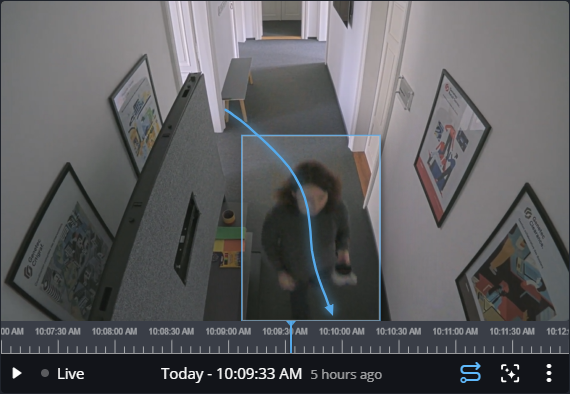
(Optional) To view how a person moved within the camera's field of view, click
Show trajectory (
 ).
).
-
Use your mouse to draw a box around the person of interest.
-
(Optional) In the Similar people section, review visual matches to
identify potential sightings and movement paths.
-
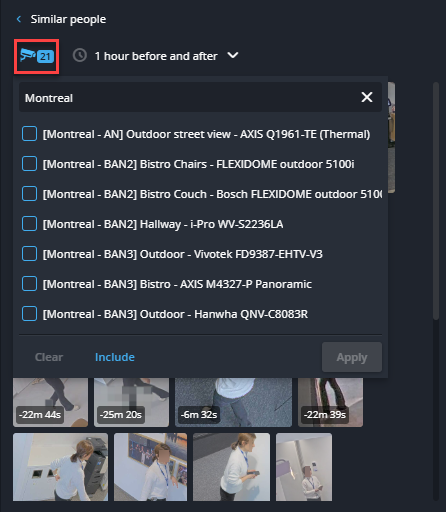
Click the camera icon to choose cameras to include or exclude from the similar
people detection results.
-
Click the camera icon to choose cameras to include or exclude from the similar
people detection results.