
Finding a vehicle of interest from the Investigation task
2026-09-23Last updated
To quickly find a vehicle of interest, you can perform an intelligent search in Security Center SaaS using natural language search criteria and additional intelligent search filters. The investigation information can then be reviewed to build a timeline of events and to understand what happened before or after an incident.
Before you begin
- Make sure that your administrator has activated camera metadata.
- Familiarize yourself with intelligent search tools.
- Learn about video timeline thumbnails.
What you should know
- Some parts of this procedure require a Security Center SaaS Premium Plan. For an overview of the key features and differences between the Standard and Premium plans, see the Security Center SaaS Features Matrix.
- This procedure should only be performed on stationary camera deployments. Intelligent search on a moving camera is not supported because moving cameras do not provide consistent metadata.
Procedure
-
(Optional) To refine your search results, click the filter icon (
 ) and set your filters.
-
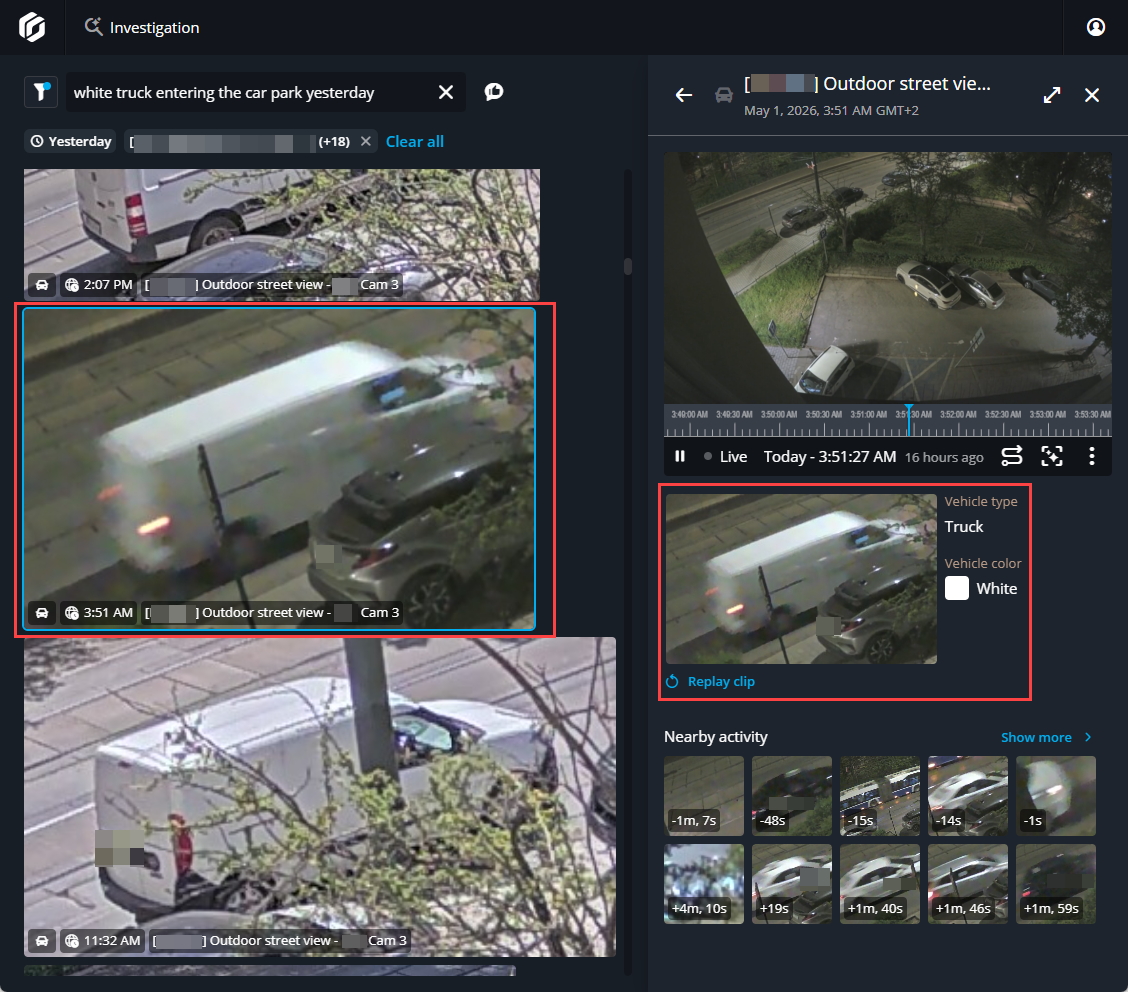
Review the results to identify your vehicle of interest.
-
Choose a video thumbnail to view more details and options.
The video plays in the side pane tile with details below, such as the current video frame, vehicle type and color filters, and so on.
-
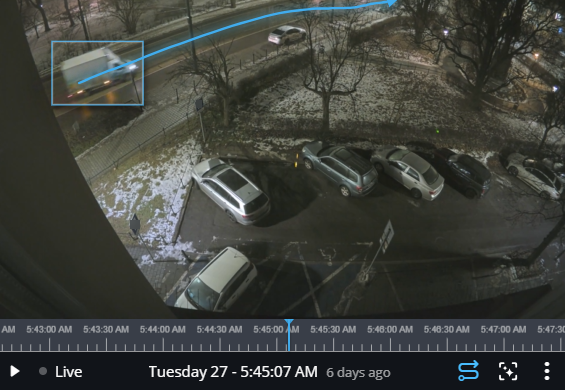
(Optional) To see how a vehicle moved within the camera's field of view, click
Show trajectory (
 ).
).
-
Choose a video thumbnail to view more details and options.