Viewing when an object entered or exited a camera's field of
view
2026-09-29Last updated
To determine when an object of interest entered or exited a camera's field of view, you
can use intelligent search in Security Center SaaS to investigate. The investigation details can
then be reviewed and used to compile a timeline of events, including scene changes, entry and
exit detections, and nearby activity.
This procedure should only be used with stationary camera setups because it relies on
camera metadata to detect changes in the camera's view.
Procedure
In a video tile, go to a point of interest in the timeline.
Click Intelligent search().
(Optional): Use video scrubbing to quickly preview the recording and locate relevant
footage.
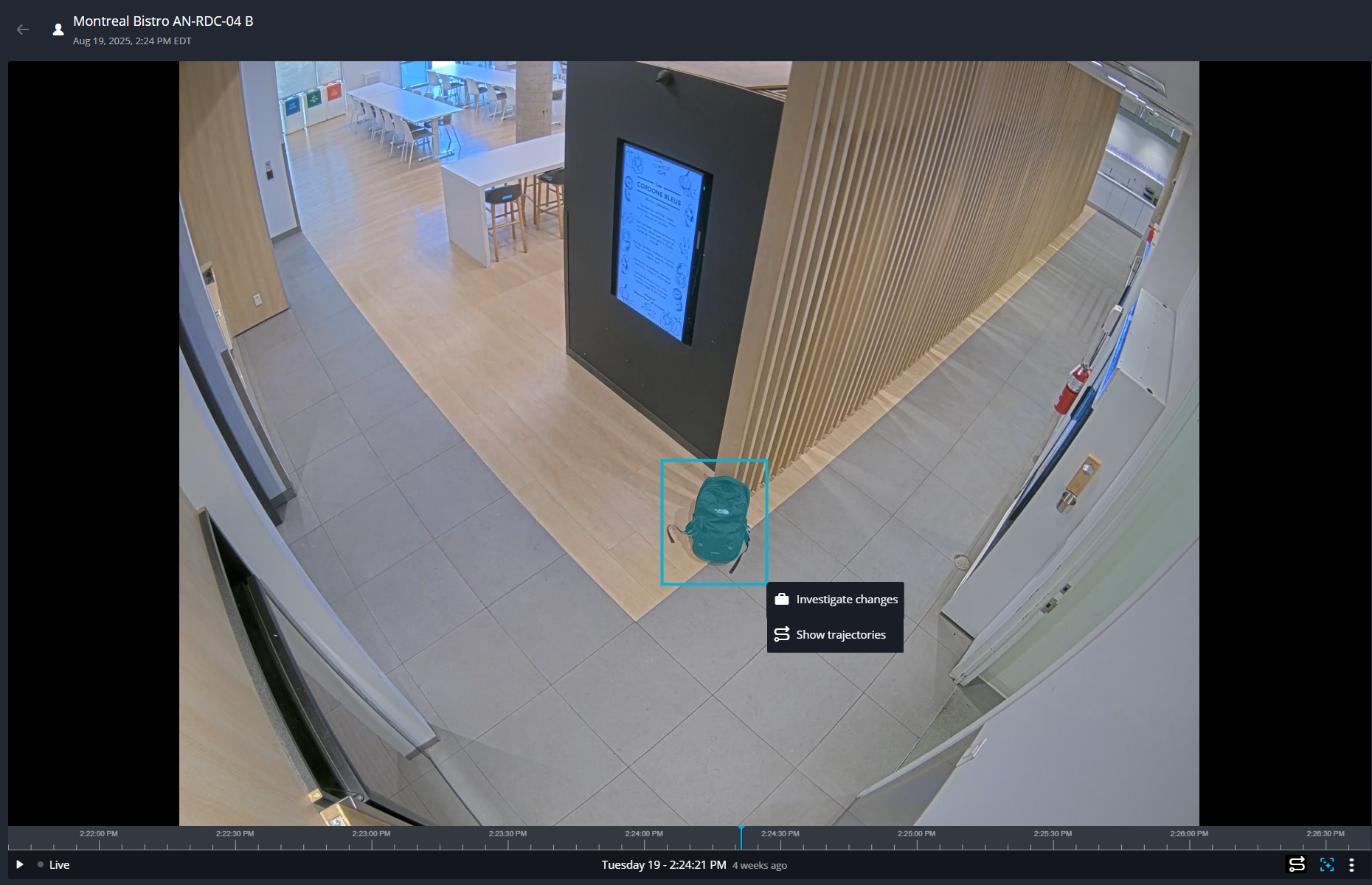
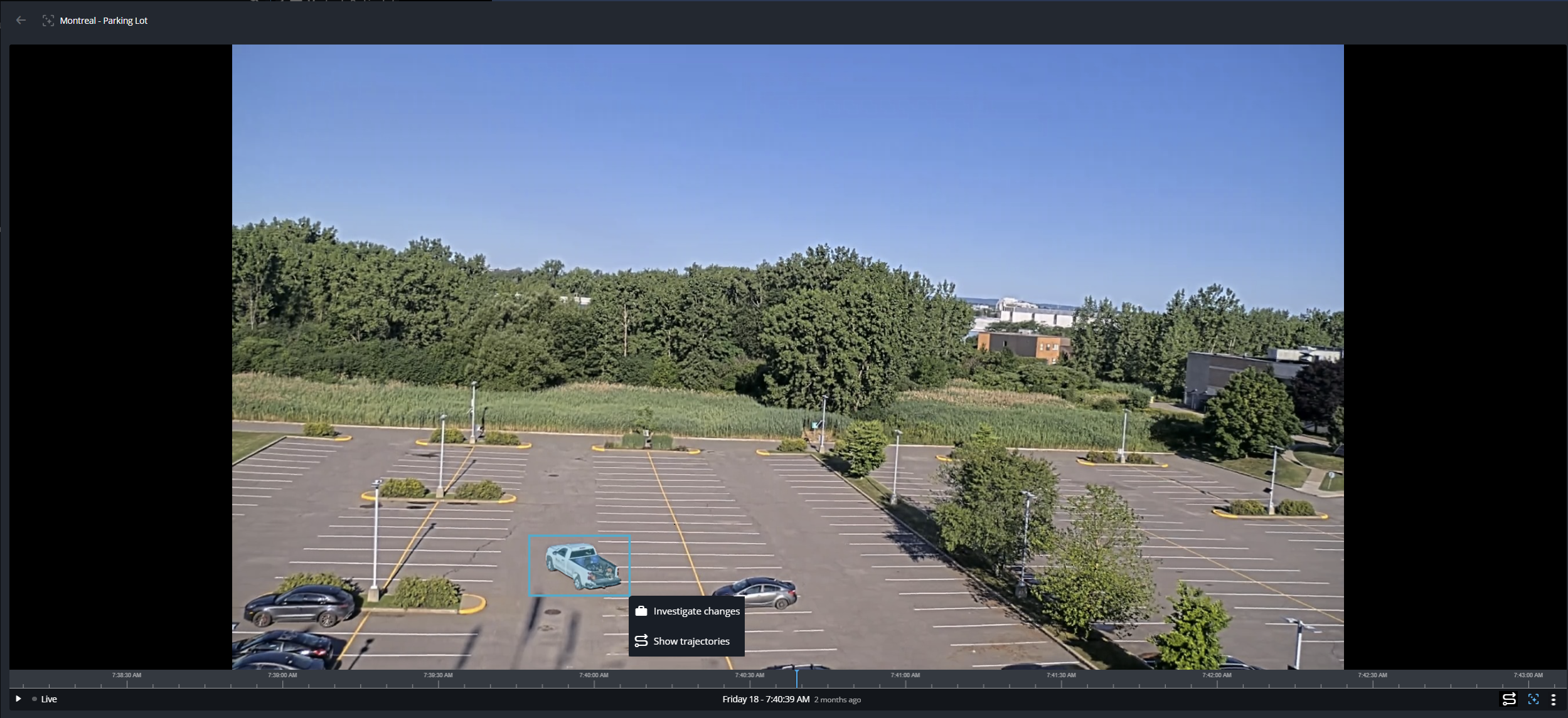
Click and draw a box around the vehicle or object of interest.
The following example shows a vehicle of interest chosen for investigation.
The following example shows an object of interest chosen for investigation.
Click Investigate changes to load the results matching the
selected vehicle or object of interest.
Important:
The search results and sections displayed in the side pane change
depending on the options you select and the thumbnails you review.
In the Entry and exit detections section, click the entry and exit
thumbnails to watch the vehicle or object of interest enter or exit the scene.
Tip:
When using certain camera configuration settings, entry and exit
detections can take up to 3 minutes to load. If the system did not automatically
identify the right moment, you can manually override it by selecting Show
more to browse earlier or later detections.
In the Nearby activity section, review the results to find people
or vehicles that were observed in the vicinity when the object of interest was seen.
Click Show more to expand the nearby activity section.
From here, you can modify the detection types and time range to examine more
matches.
Note:
If your vehicle or object of interest might have entered, exited, or
interacted with other people or vehicles, consider selecting People and
vehicles.
In the side pane, select thumbnails of any potential matches to view in the video
player.
The investigation process reveals a timeline of events, including the vehicle's or
people's movements, their interactions, and what occurred before or after.

 ).
).
 The following example shows an object of interest chosen for investigation.