
Configuring the communications settings of the Genetec Intrusion Protocol
2026-10-06Last updated
To adjust how intrusion panels communicate with Security Center SaaS, you can modify the Genetec Intrusion Protocol's default communication settings.
What you should know
Procedure
-
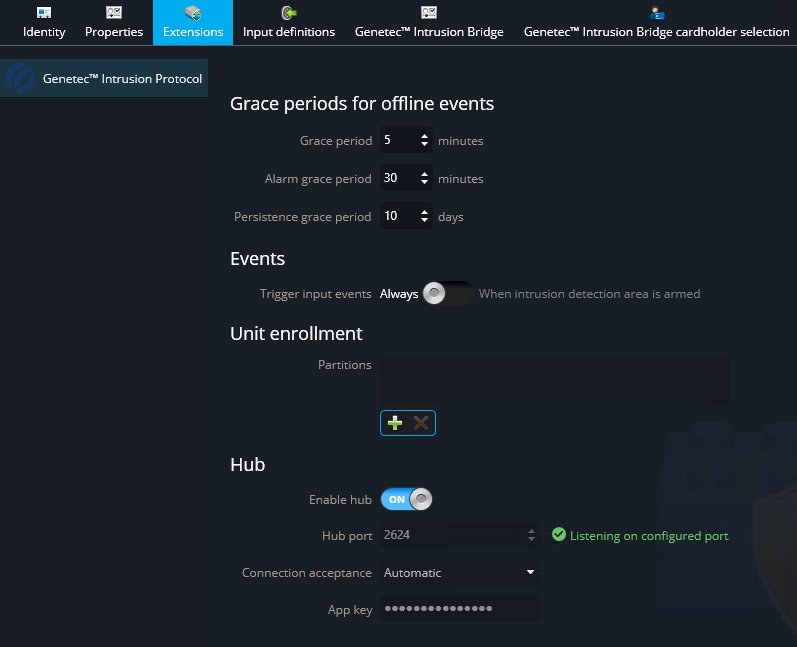
Click the Extensions tab and select Genetec™ Intrusion
Protocol.
-
Configure the following settings:
- Grace period
- Period when offline events from the intrusion panel are treated as live events; they are logged and sent to online users. The default is 5 minutes.
- Alarm grace period
- Period when offline alarm events from the intrusion panel are treated as
live events; they are logged and sent to online users. The default is 30
minutes.An alarm event is defined as one of the following:
- Input alarm activated
- Intrusion detection area alarm activated
- Intrusion detection area duress
- Intrusion detection unit tamper
- Persistence grace period
- Period when offline events from the intrusion panel are logged but not sent to online users. The default is 30 minutes. Offline events outside this period are discarded.
- Trigger input events
- When set to Always, every new event reported by a specific
input triggers a new alarm event in Security Center SaaS. When set to
When intrusion detection area is armed, input events are
only reported when the associated intrusion detection area is in an armed state.
Otherwise, events are discarded.Note:Setting this to When intrusion detection area is armed doesn’t affect custom events. This is only for native events, including Input state changed, Input bypass state changed, and Input alarm state changed.
- Partitions
- If you want to change the default partition of intrusion units, you can click
Add an item (
 ), and select a new partition. This only
applies to units that haven’t yet been enrolled. If the list is left empty, the
units are enrolled under the same partition as the Intrusion Manager role. Best Practice:Enroll the units in the same partition as the role. Otherwise, when viewing the entity tree, the units aren’t under any role.
), and select a new partition. This only
applies to units that haven’t yet been enrolled. If the list is left empty, the
units are enrolled under the same partition as the Intrusion Manager role. Best Practice:Enroll the units in the same partition as the role. Otherwise, when viewing the entity tree, the units aren’t under any role.