
Preparing a Bosch intrusion panel to add to Security Center SaaS
2026-08-14Last updated
To add a Bosch intrusion panel to Security Center SaaS, configure the panel settings and record the panel's IP address, port number, and automation passcode required to add the panel to the system.
Before you begin
- Review the best practices for connecting intrusion panels to the network.
- Confirm that you have a supported Ethernet module.
Procedure
-
Enable communication between the panel and Security Center SaaS using RPS.
-
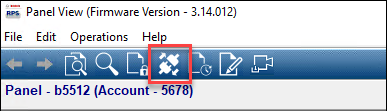
Click the Connect button to connect RPS to the panel.
-
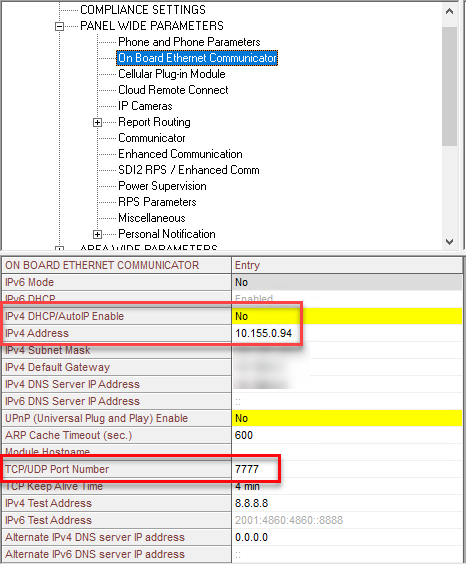
In the settings:
- Set IPv4 DHCP/AutoIP Enable to No.
- Enter an IP address for the panel in the IPv4 Address field.
- Take note of the panel's IP address and TCP/UDP port number.
-
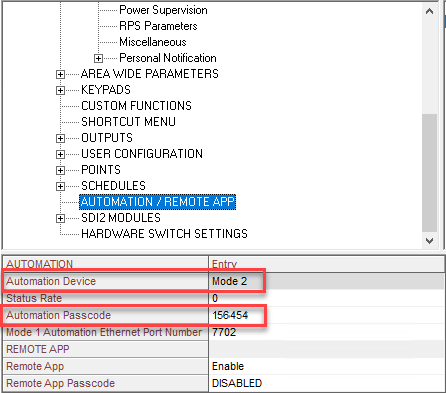
In the Automation/Remote App settings:
- Set Automation Device to Mode 2.
- Set the Automation Passcode.
- Take note of the panel's automation passcode.
-
Click the Connect button to connect RPS to the panel.
Example
Watch this video to learn more. Click the Captions icon (CC) to turn on video captions in one of the available languages.