
About video timeline navigation
2026-07-08Last updated
The video timeline in Security Center SaaS supports several navigation methods for monitoring, reviewing video, and performing investigations or intelligent searches.
Navigate the timeline from a monitoring tile
For most monitoring and video review functions, you can navigate the video timeline from a monitoring tile.
You can use the timeline in the following ways:
- To navigate to a specific time, hover over the video timeline and drag the cursor to
the desired time.

- To refine your selection, hover over the video timeline and use the scroll wheel to
zoom in or out to reduce or expand the time range, and then drag the cursor to the
desired time.

For information about selecting a time, see Selecting a time from the video timeline.
Navigate the timeline using thumbnails
On cameras that have the Video thumbnails on timeline feature enabled, you can use thumbnails in the following ways:
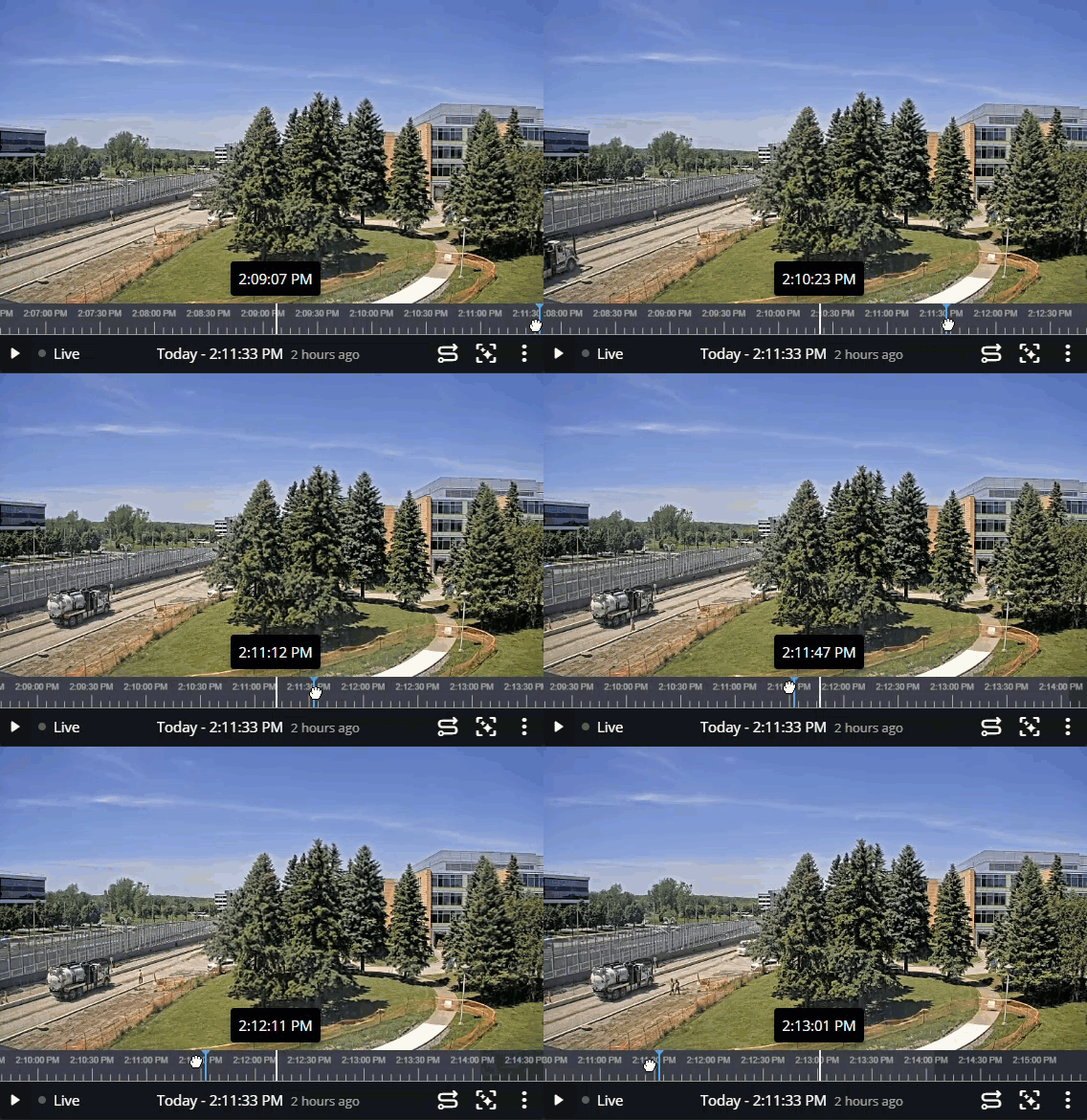
- When you hover over the timeline, a thumbnail preview appears above it. The available
thumbnails depend on the visible time range. A shorter time range shows thumbnails at
shorter intervals than a longer time range. To adjust the time range while hovering, press
Shift and scroll the mouse wheel. The timeline displays a range from 30 seconds to 24 hours.
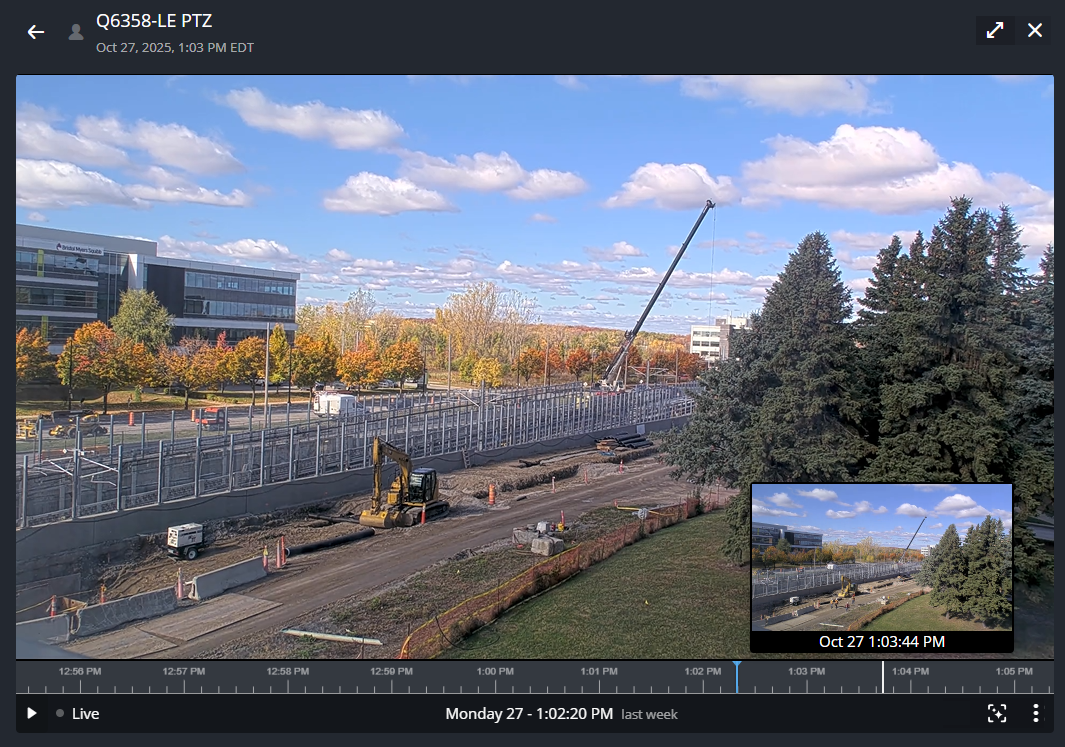
- When you drag along the timeline, a full-frame thumbnail preview appears over the
current video. A white cursor indicates your position. Releasing the mouse moves playback
to that time.
Note:
You can only view video thumbnails on the timeline when using the
Investigation task or intelligent search functions to review
video.