2025-11-04Last updated
To enable communication between a Honeywell Galaxy Flex panel and Security Center SaaS,
configure the panel access over Ethernet using the Galaxy RSS application.
Before you begin
- Download and install Honeywell Galaxy RSS.
- Review the documentation related to your Honeywell Galaxy panel.
- Make sure your intrusion panels are functioning properly and have an Ethernet module
installed. If they aren't functioning as expected, consult your Honeywell
documentation.
- Find the panel’s IP address.
What you should know
Galaxy RSS programs, services, and maintains intrusion panels
locally or remotely from a Windows desktop. For details not covered in this procedure, you can
download the related user manual from https://buildings.honeywell.com/us/en/products/by-brand/honeywell-security/galaxy. Important: Content in this guide
that references information found on third-party websites was accurate at the time of
publication, however, this information is subject to change without prior notice from
Genetec Inc.
Procedure
-
Sign in to Galaxy RSS and select your Honeywell Galaxy Flex panel.
-
Replace the default remote user code:
-
From the navigation window, select System Users.
-
On the General tab, in the Remote
section, change the PIN.
The new PIN must be a unique four, five, or six-digit number.
-
Configure the panel's system parameters.
-
Click .
-
Click on each of the tabs and configure the parameters as required.
-
Configure the panel's zones.
-
Click .
-
Configure the zones as required.
-
Organize the panel's zones into logical partitions for control, monitoring, and user
access.
-
From the navigation window, click , and select Enable Groups.
-
Click and configure the settings as required.
-
Configure the panel's communication settings.
-
Click .
-
On the General page, configure the following:
- Comm Fail Time
- Set to 400.
- Line Fail Path
- From the list, select All.
-
Click .
-
On the Ethernet tab, enter the following:
- IP Address
- Enter the IP address of the panel.
Note: Take note of the
IP address, as it is required when adding the panel to Security Center
SaaS.
- Gateway
- Enter the Gateway IP address of the panel.
- Network mask
- Enter the subnet mask that matches your router or network configuration.
-
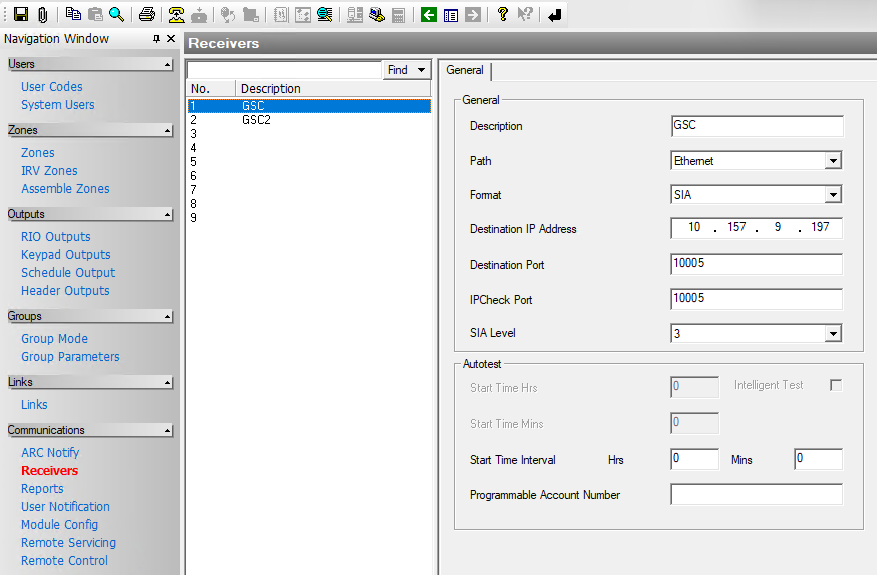
Click , then click an empty field from the list of receivers, and enter the
following in the General section:
- Description
- Enter the name of the Cloudlink.
- Path
- Select Ethernet.
- Format
- Select SIA.
- Destination IP Address
- Enter the IP address of the Cloudlink.
- Destination Port
- Enter the port that will be used when adding the Galaxy panel to Security
Center SaaS.
Note: Take note of this port, as it is
required when adding the panel to Security Center SaaS.
-
Go to .
-
In the SIA 4 Control section, enter the Cloudlink's IP
address.
-
Enable the panel to transmit events to the Cloudlink.
-
Click .
-
Click the Triggers tab and select events from the panel that
you want record.
-
Click the Sequences tab.
-
In the list of receivers, click an empty field and select the Cloudlink.
The Cloudlink is identified by the name entered in the
Description field in .
After you finish
Repeat this procedure for each intrusion panel that you want
to monitor in Security Center SaaS.