Connecting a spot monitor

2026-01-14Last updated

To improve situational awareness, you can connect an external display directly to a Cloudlink appliance and monitor live video from a camera in Security Center SaaS.

Before you begin

  • Make sure you can access a Security Center SaaS system.
  • Make sure that the Cloudlink 210 appliance has been added to it, as well as the camera you want to view.
  • Connect the monitor to video output 1 on the appliance. If the monitor isn't natively compatible with DisplayPort, you need an active adapter.

What you should know

  • You can connect to one external display at a time.
  • You can view a single camera or sensor at a time.
  • Spot monitoring only supports live streams, not video playback.
  • After setup, you can view the live stream without having to sign in to Security Center SaaS.

Limitations:

  • If you monitor a fisheye or 360° lens, the video stream isn't dewarped.
  • Privacy protection isn't applied to the monitor, even if it's enabled on the camera in Security Center SaaS.
  • The monitor resolution may differ from the camera resolution set in Security Center SaaS, resulting in minor visual differences.

Procedure

  1. In a web browser, sign in to Security Center SaaS and go to Configuration.
  2. On the Devices page, select the appliance.
  3. In the side pane, click the Spot monitor tab. If the monitor isn't displayed in Output, check the connection.
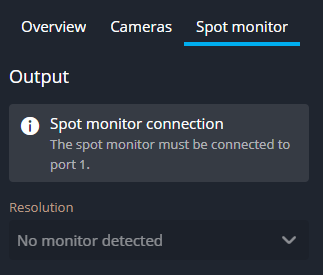
    No monitor detected in the spot monitor tab in Security Center SaaS.
  4. In Input, select a camera or sensor.
  5. Select a monitor resolution. The recommended native resolution is listed, along with alternative options.
  6. Click Save.
    The selected live video stream is displayed on the spot monitor.

    The spot monitor is configured in Security Center SaaS.